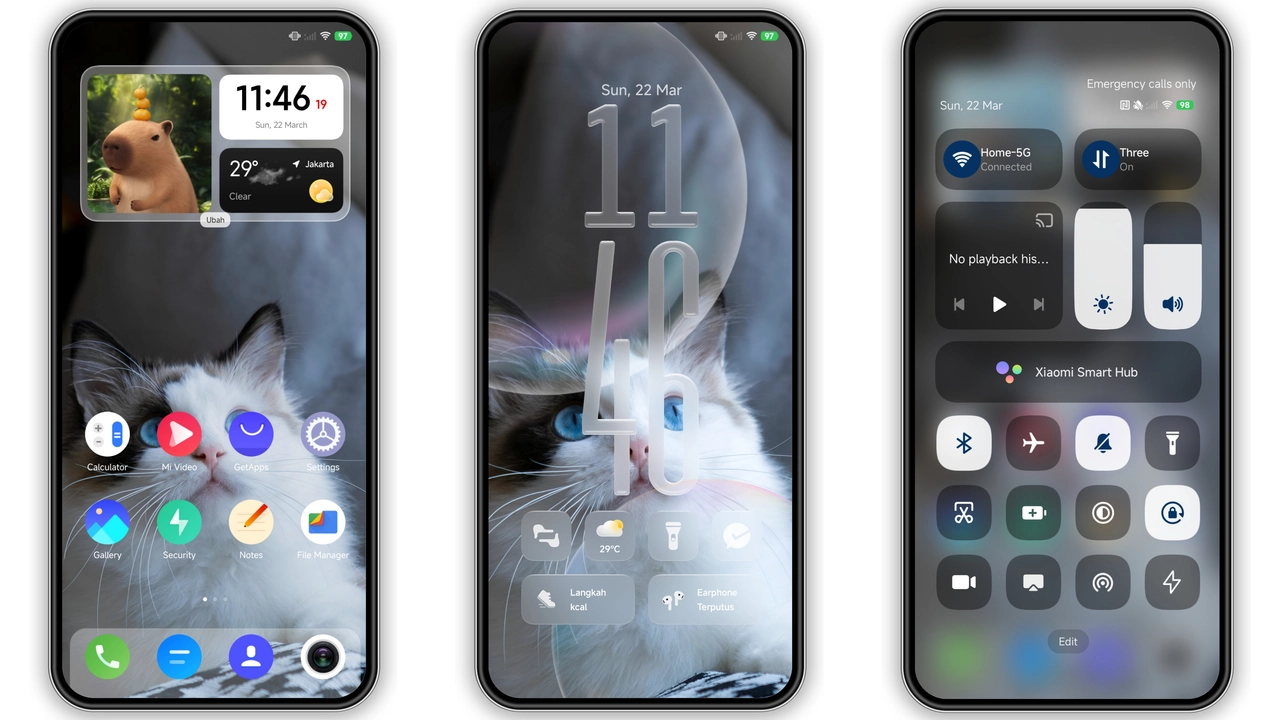
Theme Metadata
Parameter · Value
Designer · -
Size · N/A
Format · MTZ
Compatibility · HyperOS / MIUI
Monochrome Street‑Lamp Aesthetic
Dark palette dominates. Grayscale tones mimic night‑time streetlights. Subtle glass sheen adds depth. Icons retain sharp edges, avoiding blur. Contrast balanced for readability on dark backgrounds. Each glyph respects original app silhouette, ensuring instant recognizability. The theme leans into minimalism; no color splashes, only muted whites and silvers. Result: cohesive, moody visual experience that feels premium without overwhelming the eye.
Suggested Read: Archive: Hello 3 HyperOS 3.0 Theme – Iconic MTZ File
Ideal Users & Use Cases
Night‑owl enthusiasts gravitate toward this pack. Users who prefer low‑light UI find it reduces eye strain. Minimalist fans appreciate the restraint; no neon, no gradients. Developers looking for a clean base to build custom widgets may adopt it as a starter skin. Gamers who stream in dim rooms benefit from reduced screen glare. Professionals handling confidential data appreciate the discreet look; dark icons hide sensitive app names at a glance.
Compatibility & Performance Notes
Designed for HyperOS and MIUI. Works on current builds of both platforms. No additional framework required; native MTZ loader handles installation. Resource usage minimal; icon files optimized for fast rendering. No known conflicts with popular launchers. Users of third‑party icon packs should disable overlapping packs to avoid duplicate resources. Battery impact negligible; dark UI actually conserves OLED power. Ensure device runs the latest OS version for smooth asset integration.
Installation Walkthrough
1. Download the MTZ file from the trusted source. 2. Open the file; system prompts "Apply Theme". 3. Confirm installation; system validates package integrity. 4. Wait for progress bar to complete—typically under ten seconds. 5. Navigate to Settings → Themes; select "Streetlight MTZ Icons". 6. Apply; icons refresh instantly. 7. Optional: clear cache if any residual icons persist. 8. Reboot for full system‑wide effect, though not mandatory. After install, verify each app’s icon matches the monochrome style. If mismatches appear, re‑apply the theme or clear the launcher cache.
Pros and Cons
• Pros
• Cohesive dark aesthetic
• Low battery draw on OLED screens
• High readability in low‑light environments
• Minimal performance overhead
• Seamless integration with HyperOS & MIUI
• Cons
• No color variants; users seeking vibrancy must switch packs
• Designer information missing; may affect trust for some
• Size not disclosed; cannot gauge download bandwidth precisely
• Limited to icons; does not include wallpapers or fonts
---
Enjoy the street‑lamp glow on your device. Embrace the darkness; let the icons lead the way.
Download Links
Use the buttons below to open the theme file and the supporting link.
Download File
Helpful links
More Theme Updates
For more curated HyperOS and MIUI theme updates, visit Hyper OS x MIUI .