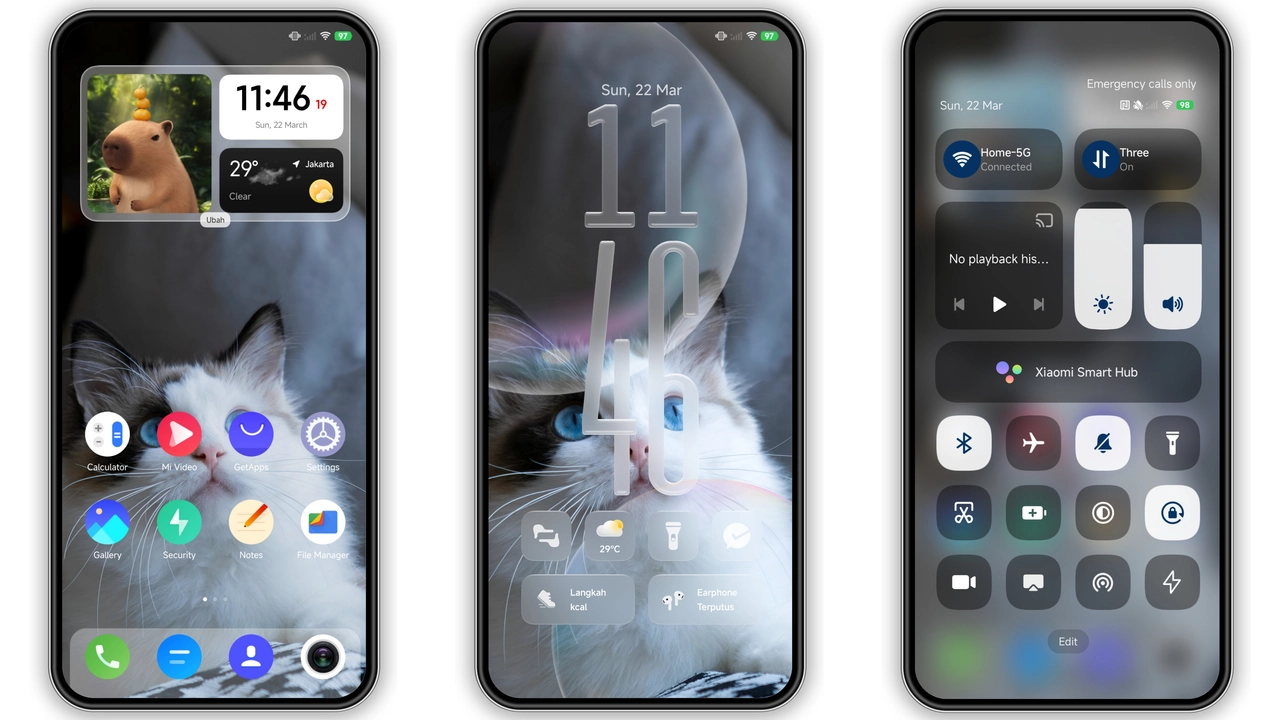
Finding a clean, high-resolution backdrop that balances artistic flair with day-to-day usability can be surprisingly tricky. Many stock backdrops lean either too busy or flat. The National Day Creative Wallpaper brings an energetic aesthetic to your screen, blending deep crimson hues, crisp typography, and balanced contrast tailored for modern OLED and AMOLED panels.
Whether running HyperOS or MIUI, a well-composed background sets the tone for your entire device interface, anchoring icons and widgets without fighting them for attention.
Parameter · Value
Designer · Community Creator
Size · 1.83 MB
Format · .JPG (Ultra HD / 4K)
Compatibility · HyperOS / MIUI (Universal)
Vibrant Red Palette and Cultural Minimalism
The central visual identity of this backdrop revolves around warm, saturated festive tones. Rather than cluttering the screen with competing elements, the composition relies on structured graphic design principles: focused center weighting, soft gradient drop-offs, and generous negative space across upper tiers.
This deliberate layout keeps status bar indicators, clock text, and system notifications completely legible. The saturated crimson base layer shines on high-nit displays, delivering deep vibrancy without blowing out midtones. Edge feathering around main motifs prevents harsh transitions across swipe gestures, preserving fluid launcher animations.
Suggested Read: Moon City MTZ vs Standard HyperOS Theme – Which Fits Your Phone?
Widget Framing and Icon Readability
Busy wallpapers often sabotage icon legibility. White labels get washed out, dark mode silhouettes disappear, and custom clock typography turns unreadable. This graphic prevents that issue through smart focal zoning.
The lower third provides stable contrast distribution, allowing standard MIUI and HyperOS icon packs to float clearly over the surface. If you use translucent system widgets—such as weather readouts, battery rings, or quick-note pads—the warm gradient backdrop supplies enough separation to maintain clear borders without requiring heavy widget drop shadows.
For custom launcher users running Nova, Niagara, or Lawnchair over stock setups, the vertical composition scales cleanly across variable desktop grids without clipping primary artwork.
Universal Cross-Device Fit and Parallax
Packaged as an uncompressed high-resolution JPG file, this graphic avoids the common artifacting caused by image compression networks. Its high vertical aspect ratio naturally fits long 19.5:9 and 20:9 smartphone proportions, meaning no awkward pillarboxing or extreme zoom crops.
Key structural highlights:
• Crisp rendering across 1.5K and 2K flagship screens.
• Supports multi-screen launcher parallax panning across wide workspaces.
• High color fidelity preserved without banding or posterization artifacts.
• Seamless scaling on tablets, foldables, and external display mirrors.
If your launcher supports depth effects or lock screen layering, the sharp color boundaries make subject isolation effortless, enabling smooth lock-to-home transitions.
Pros and Cons
Pros
• Punchy, vivid colors optimized for modern AMOLED screens.
• Uncluttered negative space keeps widgets and system text readable.
• Crisp 4K source resolution prevents pixelation on large panels.
• Universal format works instantly across all hardware without MTZ loaders.
Cons
• Heavy red tones may clash with pastel or neon icon themes.
• Lacks dedicated custom icons or system UI overlays (wallpaper only).
Quick Setup Guide
Applying the graphic takes seconds through your device's native tools:
1. Save the full-resolution file to internal storage.
2. Open your default Gallery or Photos app and locate the file.
3. Tap More (three dots) and select Set as wallpaper.
4. Align framing for your lock screen, home screen, or both.
5. Tap Apply to confirm.
Download Links
Use the buttons below to open the theme file and the supporting link.
Download File
Helpful links
More Theme Updates
For more curated HyperOS and MIUI theme updates, visit Hyper OS x MIUI .