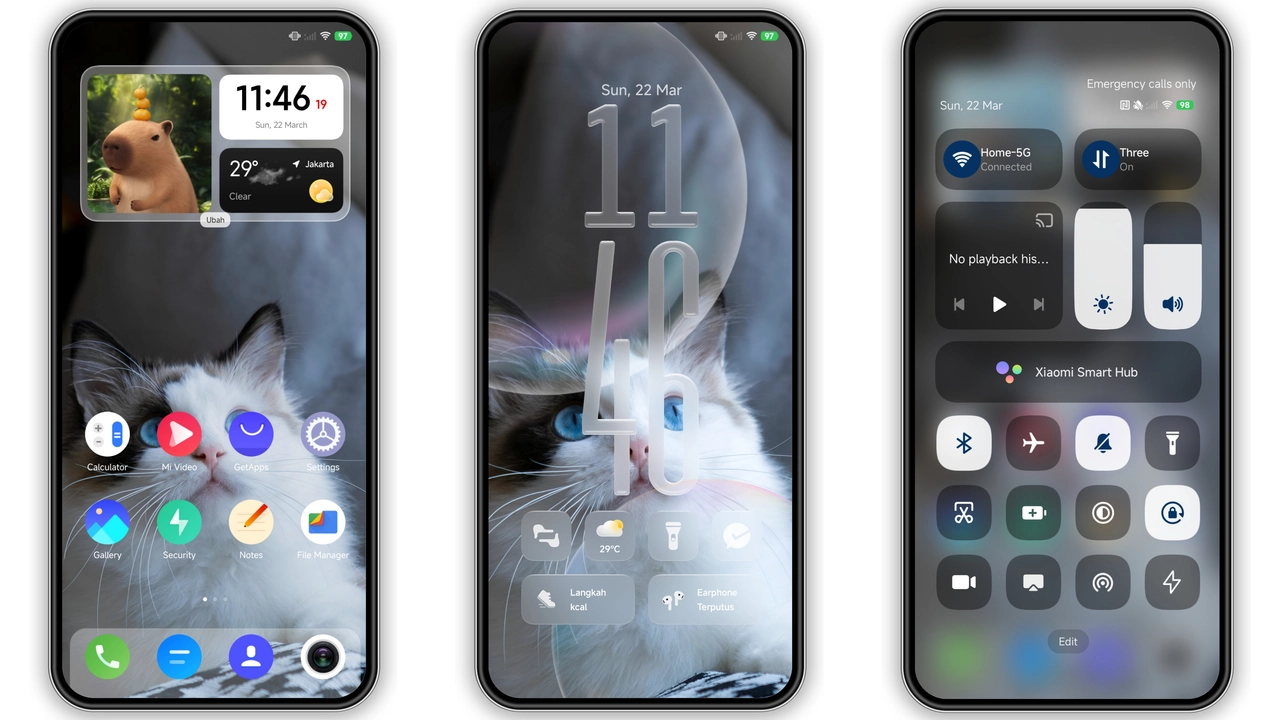
Parameter · Value
Designer · Suraj
Size · 3.81 MB
Format · .mtz
Compatibility · HyperOS / MIUI
Finding a balanced icon set for your daily driver can be tricky. Many custom packs push colors so saturated they distract your eyes, while others take minimalism to an extreme where every app looks identical. The Moody Tones icon pack, crafted by designer Suraj, takes a different direction. It focuses on muted color palettes, uniform silhouette outlines, and crisp high-resolution vector assets designed to complement both dark and light wallpaper setups without clutter.
Whether you run HyperOS or older MIUI builds, icons define how you interact with your device. Moody Tones rethinks standard app branding into a quiet, understated aesthetic that elevates your entire system interface.
Subdued Aesthetics with Unified App Architecture
Moody Tones stands out immediately due to its disciplined color treatment. Instead of relying on neon accents or bright primaries, Suraj built this pack using earthy, desaturated tones—deep slates, subtle berries, soft charcoal, and dusty neutrals. This deliberate palette prevents your home screen from looking busy, even if you keep dozens of app shortcuts across multiple panels.
Beyond color, the architecture of the icons is strictly controlled. Every icon uses a consistent squircle silhouette with balanced padding. Popular third-party applications, system utilities, and social platforms receive individual treatment, keeping their core logos recognizable while stripping away the loud corporate colors that clash with your custom wallpapers.
For apps that do not yet have a dedicated hand-drawn icon, Moody Tones uses an integrated icon mask. This mask wraps un-themed icons into the same soft background shape and tonal grade. As a result, your app drawer maintains visual consistency without odd square pegs jumping out of smooth round holes.
Suggested Read: 古早 薄巧兔子少女 vs Neon Wave: Which Theme Fits Your HyperOS or MIUI Style?
Everyday Usability and AMOLED Screen Performance
Good icon design is about usability as much as visual appeal. Many artistic packs look fantastic in screenshots but turn into a frustrating guessing game during daily use. Moody Tones maintains distinct glyph shapes inside each container, allowing you to launch messaging, banking, and utility apps by reflex.
Because the pack utilizes vector assets packed into a lean 3.81 MB archive, performance remains snappy. High-density AMOLED displays highlight the clean, anti-aliased edges of each asset. You will not see blurred borders, pixelated gradients, or micro-stutters when pulling down the app drawer or swiping across dense home screens.
This pack particularly suits users who lean toward clean, intentional setups: creative professionals, minimalists, and anyone using moody landscape or architectural photography as their wallpaper. If you prefer high-contrast setups that look elegant at night without blinding your eyes, these muted tones blend naturally into system-wide dark mode.
Setup Guide: Applying the MTZ File Seamlessly
Installing third-party .mtz themes varies depending on your ROM version and regional device settings. HyperOS and global MIUI builds enforce different rules for external files, but getting Moody Tones running is straightforward with the right workflow.
Standard Theme Manager Import
If you run an open or custom ROM that supports native imports:
1. Download the Moody Tones .mtz file to your internal storage.
2. Open your system Theme Manager app.
3. Navigate to Profile > Themes.
4. Scroll to the bottom and select Import.
5. Locate your downloaded file, let it parse, and hit Apply.
Using Theme Utility Tools (Error 402 Bypass)
On global stock firmware, applying third-party themes may trigger an authorization error. You can easily bypass this limitation using MTZ Theme Editor or Theme Tester:
1. Install your preferred MTZ helper utility from the app store.
2. Use the utility to pick the downloaded Moody Tones archive.
3. Tap through the export or patch steps to register the pack locally.
4. Head back to the native Theme Manager to apply the generated local instance.
Maintaining Icon Stability
If your launcher resets to default icons after a reboot, keep your theme utility locked in recent apps or apply the pack through the system's Customize Theme menu under the Icons sub-category. Applying only the icon module—rather than an entire full-system theme—often resolves third-party reversion checks on newer HyperOS releases.
Matching Widgets and Complementary Setups
Moody Tones works best when treated as the foundation of a broader aesthetic. Since the icons are self-contained and modular, you can mix and match them inside the MIUI customizer alongside different status bars or lock screen clocks.
Pair these icons with a clean digital typography clock or a subtle analogue widget. Desaturated photography—such as foggy mountain trails, brutalist concrete architecture, or abstract grain textures—creates the ideal backdrop. Avoid busy wallpapers with high-contrast patterns directly behind the dock, as the muted icons shine brightest against smooth, dark gradients.
Pros and Cons
Pros:
• Crisp vector assets optimized for high-DPI AMOLED displays.
• Cohesive, desaturated color palette that eliminates visual clutter.
• Adaptive icon masking ensures un-themed apps match the overall look.
• Lightweight footprint at under 4 MB, preventing launcher lag.
• Fully modular; mixes easily with other HyperOS and MIUI themes.
Cons:
• Requires theme utility tools to apply on locked global ROMs.
• Very bright wallpapers may reduce icon outline visibility.
• Users who prefer punchy, neon accents may find the palette too reserved.
Download Links
Use the buttons below to open the theme file and the supporting link.
Download File
Helpful links
More Theme Updates
For more curated HyperOS and MIUI theme updates, visit Hyper OS x MIUI .