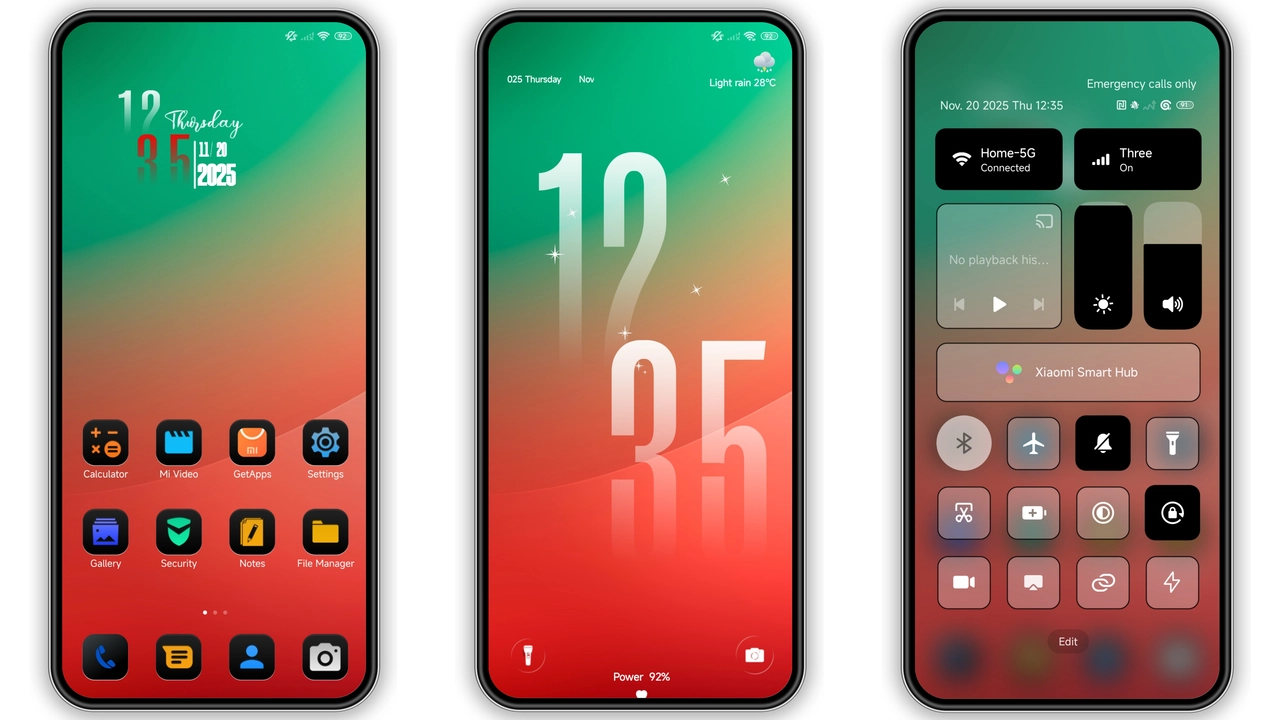
Red Line HyperOS theme gives Xiaomi, Redmi, POCO phones strong dark-and-red makeover without heavy visual mess. Style feels business, sporty, slightly gamer. Icons cleaner. Status bar tighter. Lock screen and AOD get more personality. Good pick for people bored with stock HyperOS look but still want readable daily-driver layout. Free MTZ file available, install path easy on custom ROM. Global stock ROM users need Theme Store handoff flow, so expect few extra taps.
Visual style: dark base, red accents, business energy
Red Line design language: contrast first. Black and charcoal base panels. Red line highlights around toggles, controls, selected tabs, and key UI edges. Result: screen looks focused, not colorful chaos. Good for users who like “performance dashboard” vibe.
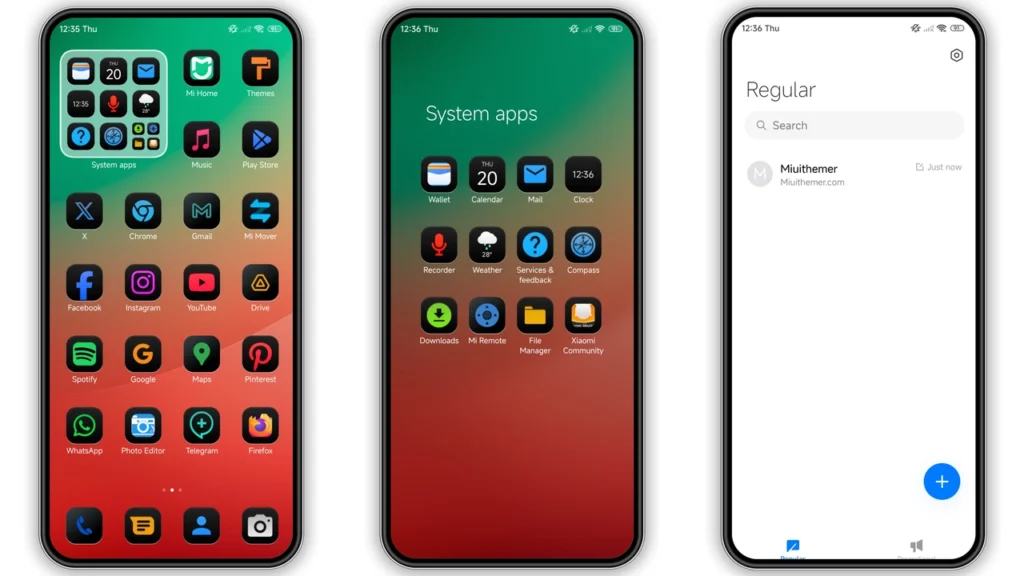
Icon pack leans modern-flat with sharper edge treatment than default HyperOS icons. Some icons look slightly bolder, so app grid feels more defined at quick glance. If your home screen has many folders, this helps scan speed. Not dramatic redesign like cartoon or iOS clone themes. More like stock-plus tuning.
Wallpaper direction supports theme tone: darker backgrounds that push red accents forward. In low light, combo looks clean and easy on eyes. On OLED panels, dark areas save battery compared with bright white themes.
Status bar tweaks matter more than people think. Red Line changes small details there, giving top area cohesive look with rest of UI. Notification shade and quick toggles also feel visually tied to lock screen and home icons. Theme avoids “mixed pack” problem where each section feels from different designer.
Lock screen styling lands in sweet spot: noticeable change, not gimmick overload. Dynamic lock screen features present in theme profile, so motion and layered effects can appear depending on device support and region behavior. Always-on Display styling also included, giving standby screen more identity.
Short version: if you want mature dark setup with red punch, Red Line nails it.
Who should use Red Line (and who should skip)
Best fit users:
• Dark mode fans who want extra character.
• People using phone for work and social both; look stays professional.
• Users who prefer readable UI over novelty experiments.
• Anyone wanting “new phone feel” without changing launcher workflow.
Also good for:
• AMOLED device owners chasing battery-friendly visuals.
• Users tired of bright gradient themes.
• People who rotate themes often and want one stable fallback.
Maybe skip if:
• You prefer pastel, minimal white, or playful cartoon themes.
• You need strict stock HyperOS visual consistency.
• You dislike red accent color in core UI.
Theme tagged with multiple style cues (Color, Black, Red, Green, Business). In practice, red/black pair dominates identity. “Green” appears more like secondary detail in select states, not main theme face.
Compatibility notes before install
Core compatibility target:
• HyperOS
• HyperOS 2.0
• Xiaomi / Redmi / POCO ecosystem
Theme package size around11.63 MB, so download light. Fast even on average connection.
Real-world compatibility split matters:
1.Global Stable Stock ROM users: usually need Theme Store opening flow from browser into Themes app. 2.Custom ROM users (MIUI/HyperOS based): can import MTZ file directly from Themes app.
If you run MIUI 11/12/13/14-based custom builds (Xiaomi EU, MIUIRoom, similar), MTZ import path usually works fine.
Good expectation setting: theme behavior can vary by ROM region locks, Theme Store policy, and device generation. Some lock screen or AOD modules can render slightly different across models. Normal for MIUI/HyperOS theming ecosystem.
Install expectations on stock ROM (Global)
On stock global ROM, most pain point comes from handoff between browser and Chinese Theme Store page. Process works, but fragile if wrong browser used.
Typical flow:
1. Open theme page in Firefox. 2. Tap official Theme Store entry. 3. Chinese theme page opens. 4. Tap 3-dot menu, chooseOpen in app. 5. Themes Store app launches. 6. Download and apply theme.
If official entry fails to open app, switch browser. Chrome or Xiaomi default browser often handles intent better. Some third-party browsers break deep link.
After apply, reboot phone if icons overlap, lock elements misalign, or status details look partially clipped. One restart fixes most visual cache issues.
Install expectations on custom ROMs (MTZ import)
Custom ROM route more direct. You already have MTZ file. Import inside Themes app.
Steps:
1. Download MTZ package. 2. OpenThemesapp. 3. Go toThemessection. 4. Scroll bottom, tapImport. 5. Select downloaded.mtzfile. 6. Apply theme.
If parts not visible right away, restart device once. Theme resources sometimes need clean reload.
Expected success rate high when ROM keeps MIUI/HyperOS theme engine intact.
Practical download notes and safety checks
Download label available:
•Red line Theme mtz File
Before installing, do quick sanity check:
• File extension must be.mtz.
• File size should be close to expected package size range (around 11.63 MB for full theme release; mirror differences possible if compressed or repacked metadata).
• Keep one backup theme active in library so rollback takes seconds.
Good habit: screenshot current home screen and lock screen before apply. Helps compare readability and spacing after theme switch.
Another good habit: apply full theme first, then customize components (icons, lock style, status bar) only if needed. Many users mix components too early, then blame theme for mismatch created by partial apply.
Day-to-day use: what changes matter most
After setup, biggest daily difference usually comes from three areas:
•Notification shade clarity: dark base with red active states easier to parse fast.
•Home screen rhythm: icon style makes rows feel organized.
•Lock/AOD mood: device feels less generic each pickup.
Performance impact usually minimal for this category of theme size. Heavy animated themes can stutter on older hardware, but Red Line profile sits moderate. If you see lag, disable extra motion effects in system settings while keeping theme assets.
Battery side: dark visual foundation helps OLED. Not miracle gain, but over full day many users notice slower drain compared with bright UI skins.
Final take
Red Line by Kartalbey hits useful middle ground: stylish enough to feel fresh, restrained enough for everyday productivity. Strong red accents bring identity. Dark structure keeps eyes comfortable at night. Theme works best for users wanting premium, business-like look without sacrificing legibility.
Install path depends on ROM type, so follow right method from start. Stock users: expect browser-to-app handoff. Custom ROM users: import MTZ and go. After one clean setup and optional reboot, theme feels stable and polished.
If your current HyperOS setup feels flat, this one gives punch fast.
Theme Preview
Download Links
Use the buttons below to open the theme file and the supporting link.
Red line Theme mtz File
Helpful links
More Theme Updates
For more curated HyperOS and MIUI theme updates, visit Hyper OS x MIUI .


