
HyperMax feels like quick visual reset for Xiaomi phone. Big change, no heavy setup. Theme packs fresh icons, cleaner status bar, new wallpapers, dynamic lock screen feel, and polished Always-on Display style. Result: phone looks modern, colorful, and less stock-boring. If you like trying new skins but hate messy layouts, HyperMax lands in sweet spot.
Visual style and overall vibe
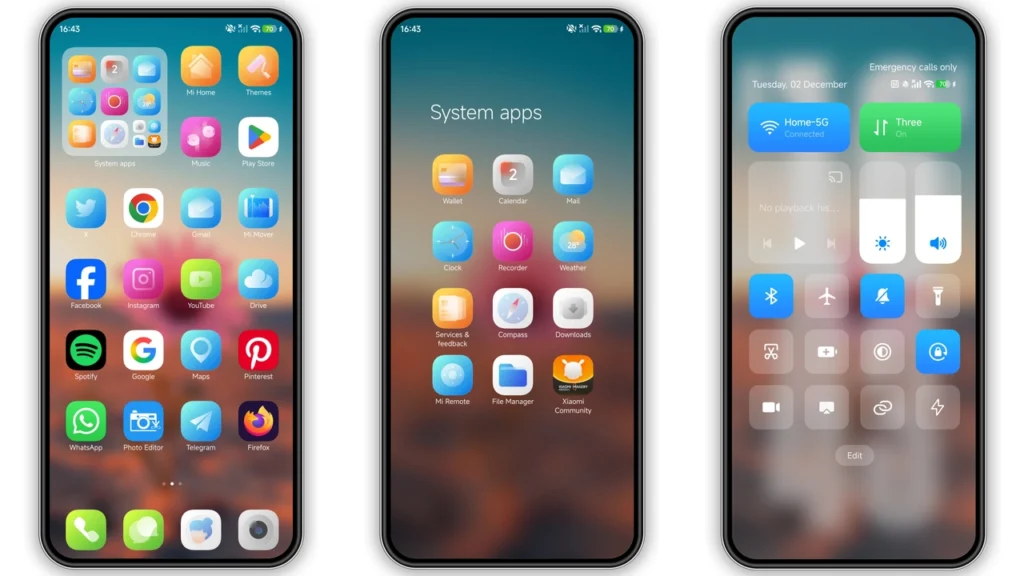
HyperMax goes for bright-clean look, not dark-minimal hardcore style. Icons look redesigned with softer shapes and more consistent color balance. Home screen gets more “designed” vibe without looking cartoonish. It still feels usable for daily work.
Lock screen carries big part of theme personality. You get more stylized layout and dynamic feeling elements. Not over-animated chaos. Better word: lively. Good for users who want phone to feel premium each unlock.
Status bar and system bits also get tune-up. Small tweaks matter here. Battery, signal, quick glance items feel more integrated with icon pack style, so UI looks less mixed. Many themes fail here and leave mismatch. HyperMax does better job keeping visual language aligned.
Wallpaper direction: fresh, colorful, designed to support icons instead of fighting them. That helps readability. Some themes drop flashy walls that kill widget visibility. HyperMax seems built with practical daily use in mind.
Always-on Display styling is another win point for people who keep AOD active. If your device supports full AOD options, theme aesthetic extends well into idle screen. Nice continuity from lock screen to home.
Who should try HyperMax
HyperMax fits users who want visible change fast. Good pick for:
• Xiaomi, Redmi, POCO owners bored with stock look
• Users who like colorful UI but still clean structure
• People who want iOS-like polish feel without full iOS clone theme
• Theme switchers who test many MTZ files and want stable daily driver
Maybe not best fit for users chasing ultra-minimal pure black AMOLED style. HyperMax identity leans vibrant and fresh. Not loud-neon. But not stealth-dark either.
If you use phone for social apps, messaging, casual gaming, and content browsing, theme style feels friendly and fun. If you use phone for business-heavy setup, visuals still usable because icon readability stays decent.
Compatibility notes before install
Core compatibility target:HyperOS and HyperOS 2.0on Xiaomi ecosystem devices, including Redmi and POCO models.
Theme also commonly works through MTZ import route on many MIUI/HyperOS custom environments. Real-world behavior can vary by ROM policy and Theme Store restrictions.
Quick compatibility checklist:
•Best match:HyperOS / HyperOS 2.0 official builds
•Possible with MTZ import:MIUI 11/12/13/14 and HyperOS-based custom ROMs
•Devices:Xiaomi, Redmi, POCO
•Designer:DAMI
•Theme size:~12.08 MB
•Region tag seen in listing:Global
Important truth: even when theme installs, some modules may apply partially on locked-down regional firmware. Common partial misses: lock screen effects, status icons, or dialer styling. That is normal in MIUI/HyperOS theme world.
Install expectations on stock ROM
If you run official Global Stable ROM, expect two typical paths: Theme Store deep link path or MTZ import fallback.
Theme Store path often works best for full component apply. Some users need browser handoff trick to open theme page in Themes app. If one browser fails, try another browser that handles Xiaomi deep links better.
After successful open in Themes app:
1. Download theme. 2. Apply theme. 3. Check lock screen, icons, AOD, status bar. 4. Reboot once if any overlap appears.
That reboot step fixes many “half applied” visual bugs.
Install expectations on custom ROMs
If you use Xiaomi EU, MIUIRoom, or other MIUI/HyperOS custom ROMs, MTZ import is usually easiest route.
Basic flow:
1. Download MTZ file. 2. Open Themes app. 3. Go to Themes section. 4. Scroll down, tapImport. 5. Select downloaded.mtzfile. 6. Apply theme. 7. Restart device if UI layers overlap.
Custom ROMs can block some system-level modules for security/policy reasons. So judge success by core elements first: icons, wallpaper set, lock screen, notification shade visuals.
Practical download notes
You only need one file for manual route:
•HyperMax Theme mtz File
use the download button below
Good practice before applying:
• Keep one backup theme active in Favorites.
• Screenshot current setup if you want fast rollback.
• Ensure enough free storage (theme small, but cache grows).
• Keep battery above 30% before install + reboot cycle.
If theme fails to apply fully first try, do this quick fix chain:
• Re-apply theme once
• Reboot phone
• Apply only icons first, then full package
• Clear Themes app cache (if your ROM allows)
Real-world usage feel after setup
Once applied right, HyperMax delivers most value in daily repetition moments: unlock, swipe, open app grid, glance notifications. UI feels fresher each time. That is point of good theme—small repeat joy, not one-time wow screenshot.
Performance impact should stay low on modern Xiaomi/Redmi/POCO hardware because package size is light. Heavy lag from theme alone is uncommon. If you see stutter, usually launcher cache issue, not theme design issue. Reboot or launcher reset often clears it.
Battery impact also usually minor. Dynamic lock elements can draw extra power on some devices if always active, but difference tends to be small unless you run max AOD/animation settings all day.
Final take
HyperMax is strong pick for users wanting modern, colorful, organized visual refresh on HyperOS devices. It avoids two common traps: over-clutter and bland copy-paste styling. Icons look intentional, lock screen carries style, and system surfaces feel more unified than many free themes.
If your goal: make Xiaomi/Redmi/POCO phone feel new again without complex modding, HyperMax is easy recommendation. Install, reboot, enjoy. If first apply looks partial, use MTZ import fallback and second apply pass. Usually done in minutes.
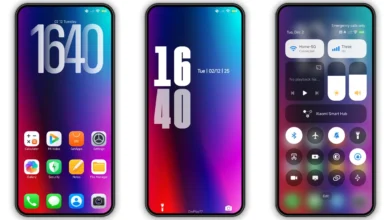
Theme Preview
Download Links
Use the buttons below to open the theme file and the supporting link.
HyperMax Theme mtz File
Helpful links
More Theme Updates
For more curated HyperOS and MIUI theme updates, visit Hyper OS x MIUI .


