Parameter · Value
Designer · MATTIRO
Size · 4.88 MB
Format · MTZ
Compatibility · HyperOS / MIUI
Blushing Hillscape Visuals
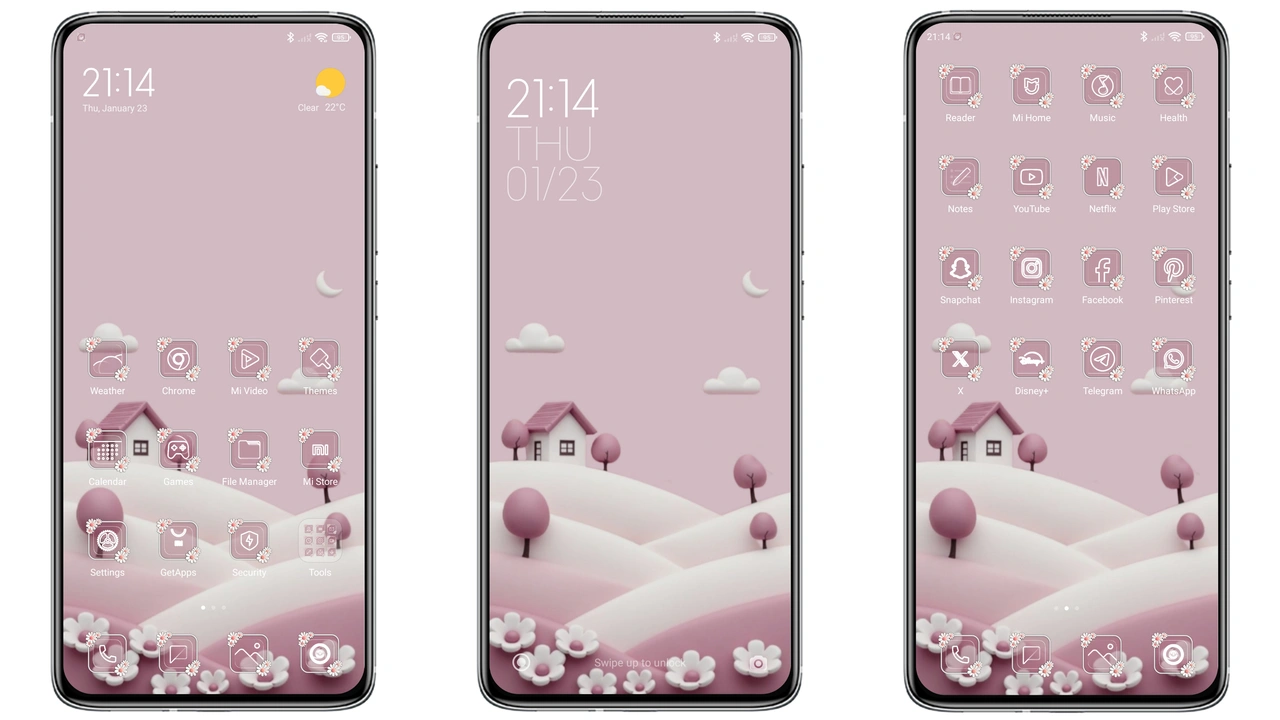
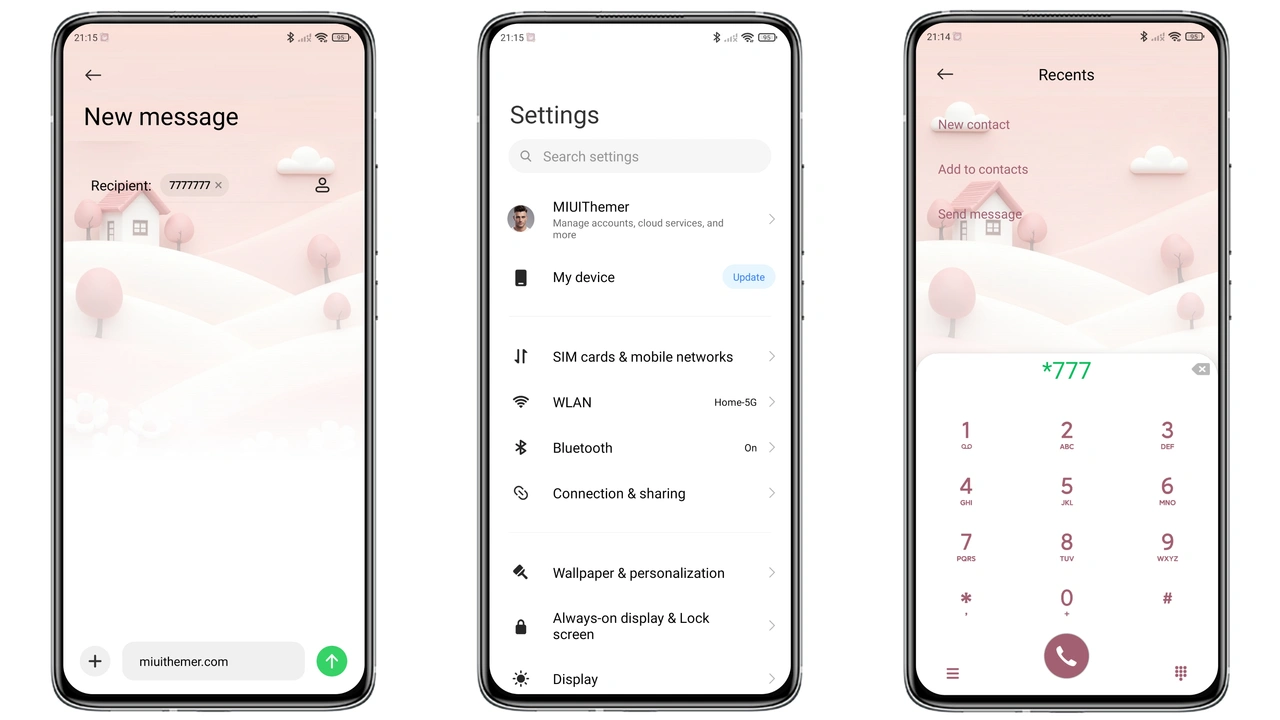
The Pink Hills theme drapes your device in a gentle sunrise of pastel pinks and muted whites. Rolling hills glide across the lock screen, each contour rendered with subtle gradient shading that mimics early‑morning light. Icons receive a soft‑rounded makeover, their original color palettes swapped for a uniform pink‑tinted hue that still respects brand identity. The status bar adopts a translucent pink blur, allowing background wallpaper to peek through while keeping icons legible. Even the Always‑On Display follows the motif, showing time and notifications against a faint hill silhouette that never feels heavy. The overall aesthetic balances charm and restraint—no neon overload, just a calm, dreamy atmosphere that feels at home on both flagship and budget devices.
Suggested Read: Black Glass V vs Lipid: Which Dark Theme Wins on HyperOS & MIUI
Who’ll Fall for the Pink Pastel Palette
If you gravitate toward minimalist design with a splash of personality, this theme hits the sweet spot. It appeals to users who love a cohesive color story without sacrificing readability. Fans of pastel UI trends—think soft‑toned social apps, light‑mode productivity tools, or even fashion‑forward phone cases—will find the pink hills comforting rather than distracting. The theme also suits creators who want a non‑intrusive backdrop for screenshots; the muted hills provide a neutral stage that doesn’t clash with app content. Conversely, power users who prefer stark contrast or dark‑mode dominance might find the light palette less practical in low‑light environments. Still, the theme offers a dark‑mode variant through system settings, letting you toggle if needed.
Installation Journey on HyperOS & MIUI
Installing the theme is straightforward, but a few nuances differ between HyperOS and legacy MIUI. On HyperOS, open the Theme Store app, tap the three‑dot menu, and choose “Import.” Navigate to the downloaded pink hills.mtz file and confirm. The system validates the package, then presents a preview screen. Press “Apply” and watch the UI morph within seconds. A quick reboot is recommended to clear any lingering cache, especially if you previously used a different theme.
On MIUI, the process mirrors HyperOS but requires the “Themes” section instead of “Theme Store.” After importing the MTZ file, you’ll see a similar preview. Apply, then optionally enable “Transparent Status Bar” in Display settings to fully reveal the pink blur effect. Some older MIUI builds may hide the import button; in that case, switch to the default Xiaomi Browser, open the theme’s download page, and tap “Open in app.” This forces the Theme Store to recognize the file.
Pros and Cons
Pros
• Cohesive pastel palette that feels fresh and modern.
• Lightweight file; quick download and install.
• Seamless compatibility with both HyperOS and MIUI.
• Well‑designed icons and lock‑screen artwork.
• Optional dark‑mode toggle via system settings.
Cons
• Light palette may reduce readability in very bright environments.
• No built‑in alternative icon packs for users who prefer a different style.
• Import button hidden on some legacy MIUI builds; requires browser workaround.
• Limited customization beyond the provided assets.
Theme Preview
Download Links
Use the buttons below to open the theme file and the supporting link.
pink hills Theme mtz File
Helpful links
More Theme Updates
For more curated HyperOS and MIUI theme updates, visit Hyper OS x MIUI .