Parameter · Value
Designer · Aguskurniawan
Size · 26.86 MB
Format · MTZ
Compatibility · HyperOS 3.0, HyperOS 2.0, HyperOS 1.0, MIUI 14, MIUI 13
Futuristic Black‑Blue Minimalism at a Glance
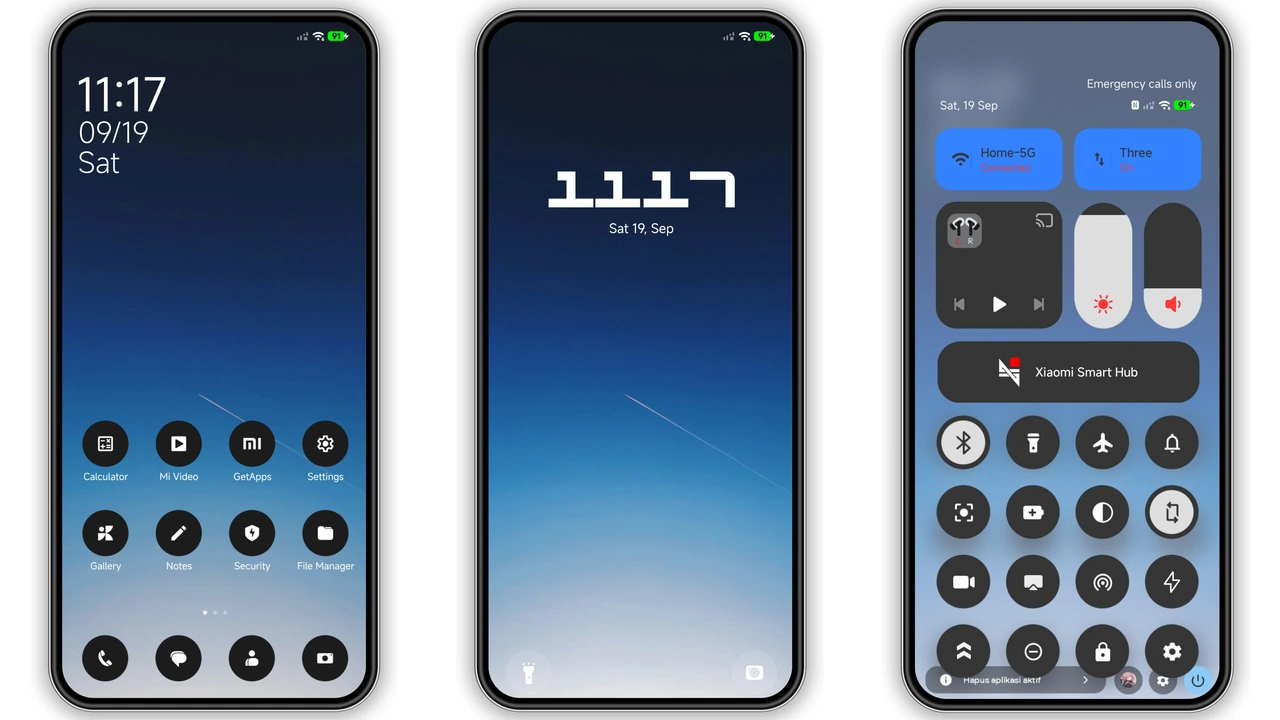
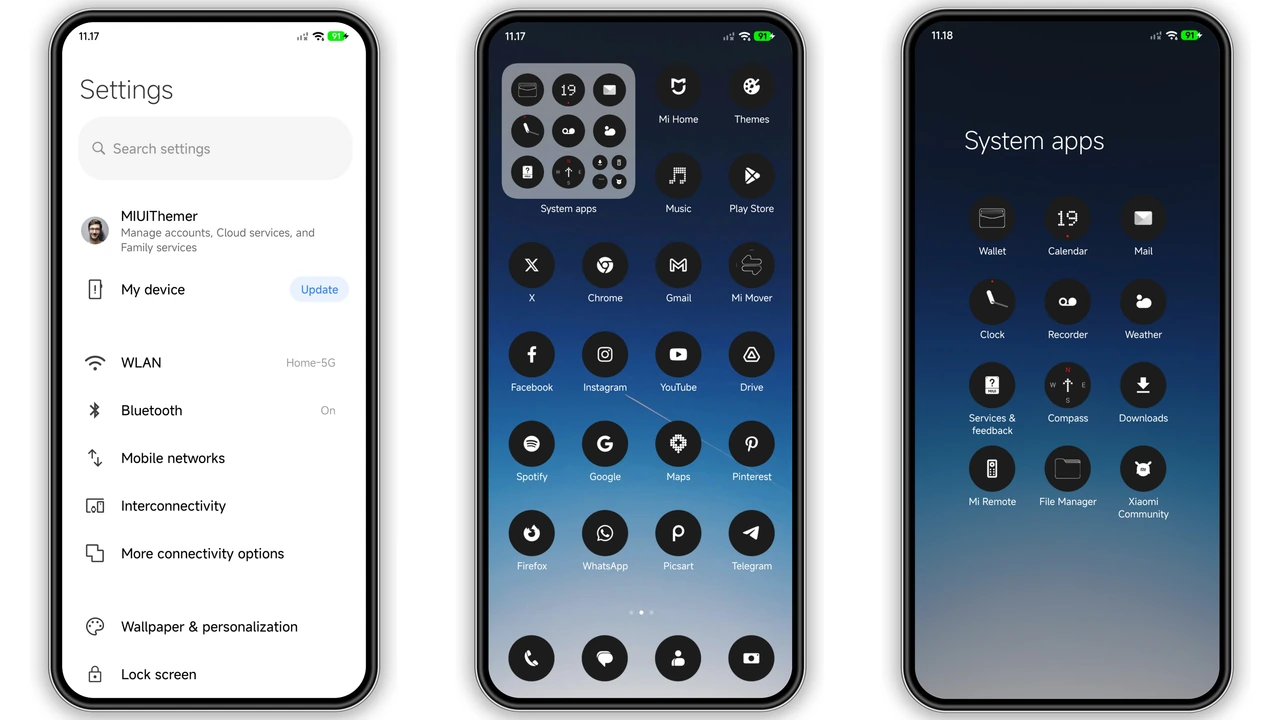
NothingOS drops the clutter and replaces it with a stark black canvas punctuated by a deep‑blue gradient that runs across the lock screen and home background. Icons are stripped to their bare outlines, rendered in matte black with a subtle blue halo that appears when tapped. The dot‑matrix clock, lifted straight from the Nothing phone, sits in the center of the lock screen, flashing a clean digital read‑out that never feels dated. The control‑center tiles adopt the same monochrome palette, while the status bar switches to a thin, semi‑transparent line that lets the wallpaper breathe. Even the Always‑On Display follows the same aesthetic: a single line of time, date, and battery indicator, all bathed in the same blue tint.
Suggested Read: HyperGlassV Theme Review: Sleek Glass Look for HyperOS & MIUI
Who’ll Love This Dark Tech Aesthetic
The theme targets users who prefer a “tech‑forward” look without the noise of bright colors. It appeals to fans of the Nothing brand, to minimalists who enjoy black‑and‑blue contrast, and to power users who want a cohesive visual language across apps, widgets, and system UI. If you spend most of your day in low‑light environments, the dark base reduces eye strain while the blue accents provide just enough pop to keep the interface from feeling flat. Developers, designers, and anyone who appreciates a uniform, distraction‑free workspace will find the theme instantly rewarding.
Installation Walkthrough and What to Expect
1. Download the MTZ file – locate the “NothingOS Theme mtz File” in the official theme store and tap download. The file size is under 27 MB, so any modern device handles it instantly.
2. Open Theme Store – launch the pre‑installed Theme Store app. If you’re on a custom ROM, ensure the store app is present or install the MIUI Theme Engine from the Play Store.
3. Import the file – navigate to Themes → Import at the bottom of the list, then select the downloaded MTZ file.
4. Apply – preview the theme, then hit Apply. The system will reload the UI; a quick restart is recommended to clear any leftover caches.
5. Post‑install tweaks – after reboot, check the lock screen and AOD for proper rendering. If icons appear misaligned, clear the Theme Store cache in Settings → Apps → Theme Store → Storage → Clear Cache.
Compatibility Checklist
• HyperOS 1‑3 – fully supported; the theme detects the OS version and adjusts the status‑bar height accordingly.
• MIUI 13‑14 – works on stock ROMs; on custom ROMs based on these versions, ensure the theme engine is not stripped.
• Device range – Xiaomi, Redmi, and POCO devices with a 1080p+ display render the wallpaper crisply. Lower‑resolution devices may see a slight scaling artifact.
• Battery impact – negligible; the theme uses static assets and does not introduce background services.
Pros and Cons
• Pros
• Cohesive black‑blue visual language.
• Minimal icon set reduces visual clutter.
• Low battery draw, no extra services.
• Compatible across HyperOS 1‑3 and MIUI 13‑14.
• Easy import via standard MTZ workflow.
• Cons
• Limited color options; not for users who like vibrant palettes.
• Some third‑party launchers may not fully respect the icon style.
• A few older POCO models show minor scaling on the wallpaper.
• No built‑in dark‑mode toggle; you must switch the entire theme.
Overall, NothingOS delivers a polished, tech‑savvy makeover that feels at home on modern Xiaomi, Redmi, and POCO handsets. Its minimalist approach, combined with the signature Nothing dot‑matrix clock, offers a fresh alternative to the default MIUI skins while staying lightweight and stable.
Theme Preview
Download Links
Use the buttons below to open the theme file and the supporting link.
NothingOS Theme mtz File
Helpful links
More Theme Updates
For more curated HyperOS and MIUI theme updates, visit Hyper OS x MIUI .