Parameter · Value
Designer · RjSurajTecH
Size · 29.52 MB
Format · MTZ
Compatibility · HyperOS / MIUI
Midnight Crimson Icons
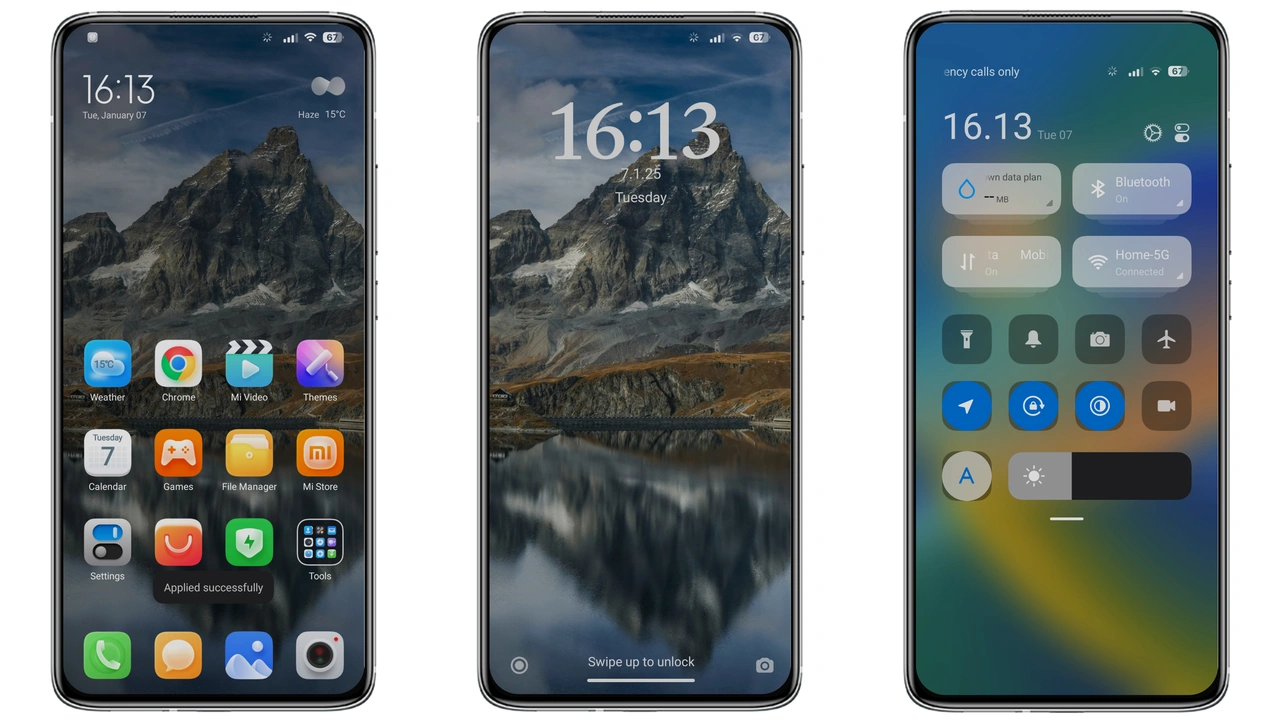
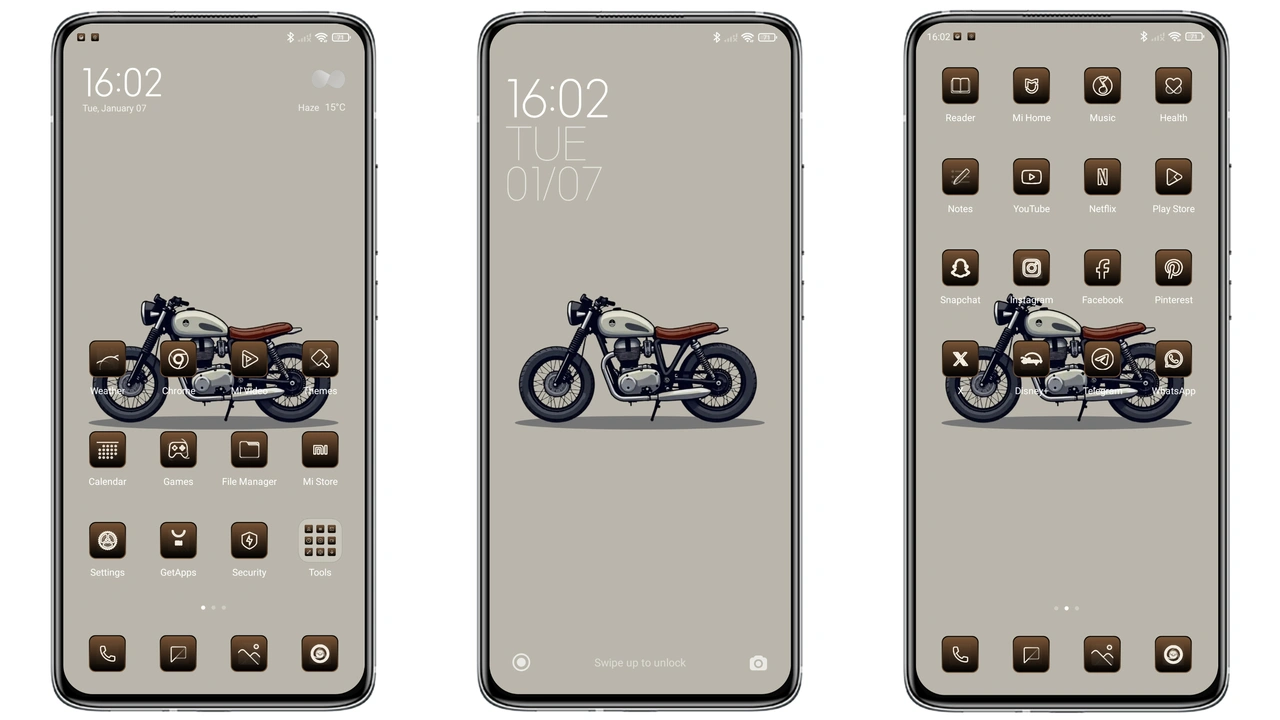
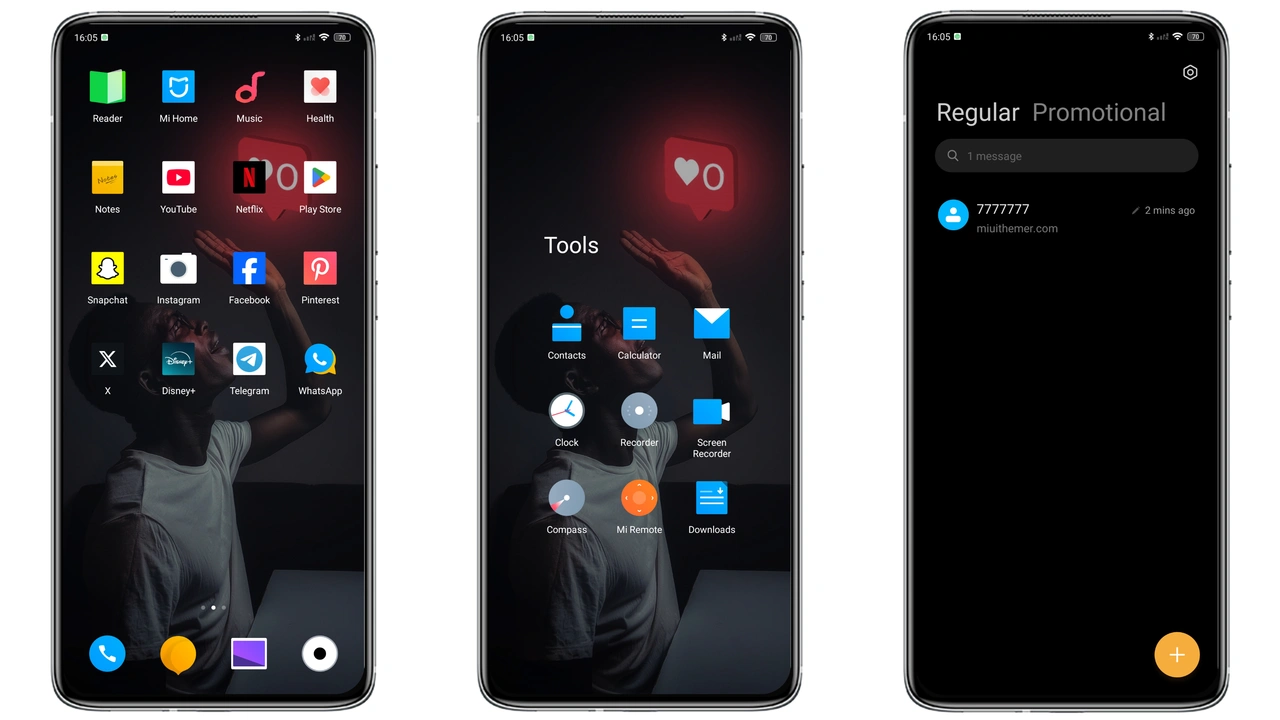
CoolX UI swaps the stock icon set for a custom collection drenched in deep crimson and matte black. Every app badge, system shortcut, and notification dot carries a subtle gradient that catches the eye without shouting. The design leans on flat geometry, yet the slight drop‑shadow on the lock‑screen clock adds depth. Users who gravitate toward cyber‑punk aesthetics or simply want a darker palette with a pop of red will feel instantly at home. Even the default wallpaper follows the same color story—a high‑contrast cityscape that blends into the status bar, making the whole UI feel cohesive.
Suggested Read: Archive of Xiaomi 17 Max Abstract Wallpapers – HyperOS & MIUI
Fluid Dark Status Bar
The status bar receives a full dark overhaul. Battery, signal, and time icons turn opaque, while the background adopts a near‑black shade that reduces glare in low‑light environments. The red accent appears on the Wi‑Fi and mobile data icons, creating a visual cue that matches the icon set. This treatment not only looks sleek but also improves readability on OLED screens by cutting down on unnecessary pixel illumination. If you spend a lot of time checking notifications, the reduced brightness can extend battery life by a few percent.
Seamless AOD Experience
Always‑On Display (AOD) is often an afterthought in many themes, but CoolX UI integrates it tightly. The clock adopts a minimalist serif font, rendered in crimson against a translucent dark backdrop. The date and battery indicator sit just below, using the same red hue for consistency. The AOD animation respects the system’s ambient light sensor, dimming further when the room is dark. For users who like a constant glance at time without unlocking the phone, this implementation feels polished and purposeful.
Installation Expectations
Applying CoolX UI is straightforward on both HyperOS and MIUI. Place the MTZ file in the device’s internal storage, launch the Theme Store app, navigate to “Import,” and select the file. After import, the theme appears in the list; tap “Apply” and wait a few seconds. A quick reboot is recommended to clear any lingering UI caches—especially after a major OS update. The theme respects system font settings, so if you prefer a larger or smaller default font, the layout adapts without clipping. Users on custom ROMs should ensure the “Allow theme imports” option is enabled in developer settings.
Pros and Cons
Pros
• Cohesive dark‑red visual language
• Low battery impact thanks to OLED‑friendly colors
• Seamless AOD integration
• Simple install process on both HyperOS and MIUI
• No system file modifications
Cons
• Red accent may be too bold for minimalist purists
• Limited to devices supporting MTZ themes
• No built‑in light‑mode variant
Theme Preview
Download Links
Use the buttons below to open the theme file and the supporting link.
CoolX Ui Theme mtz File
Helpful links
More Theme Updates
For more curated HyperOS and MIUI theme updates, visit Hyper OS x MIUI .