Parameter · Value
Designer · 南七
Size · 24.4 MB
Format · MTZ, Backup
Compatibility · HyperOS / MIUI (Xiaomi, Redmi, Poco)
Bold One UI Icons Meet HyperOS Fluidity
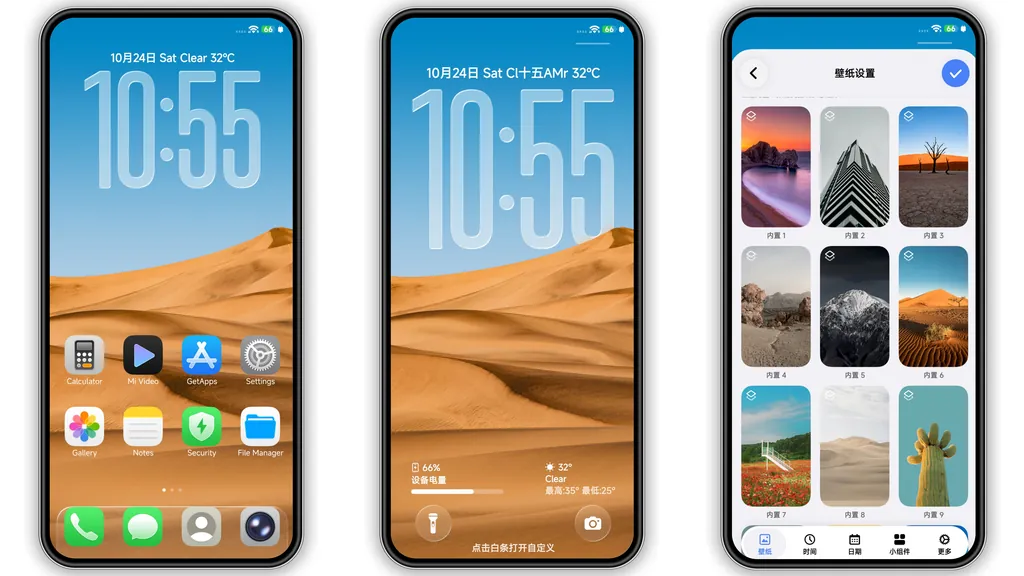
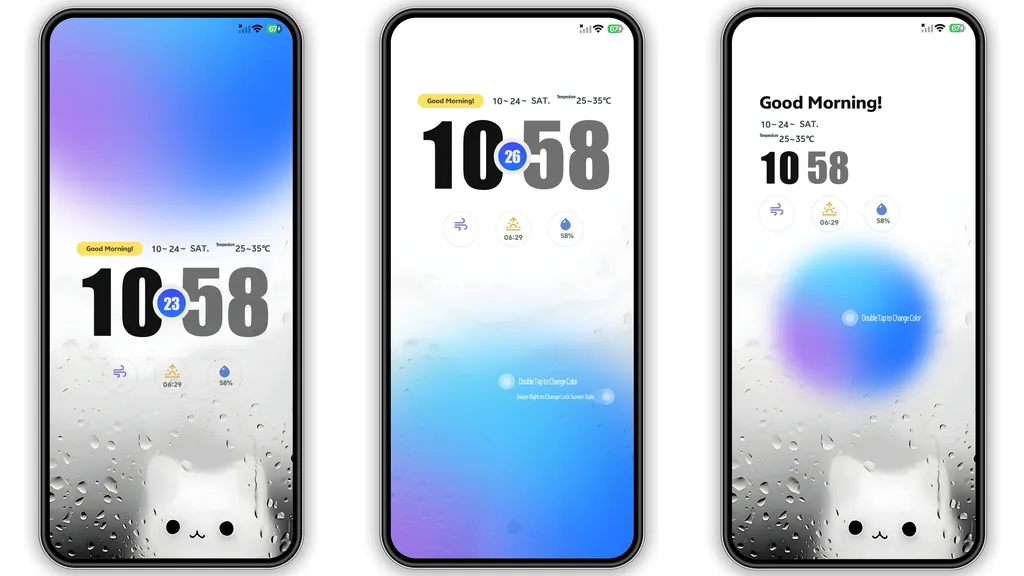
The theme replaces every stock icon with a refined One UI set that feels both familiar and fresh. Icons keep their original silhouette but receive a higher‑contrast palette, sharper edges, and subtle depth that pops against the dark or light system wallpaper. Lock‑screen widgets inherit the same visual language: clock digits gain a thin neon outline, notification badges glow faintly, and the swipe‑up arrow adopts a minimalist arrowhead. The result is a cohesive look where each UI element feels intentionally placed rather than tacked on.
Suggested Read: Orijin Six V2 HyperOS Theme: Clean Depth and Minimal UI
Who’ll Love This High‑Contrast Package
Power users who crave a visual upgrade without sacrificing readability will gravitate toward Complete Plan One II. The high‑contrast icons make navigation easier for those who spend hours scrolling through settings or messaging apps. Fans of clean, modern aesthetics—especially anyone who enjoys the One UI philosophy—will appreciate the balance between subtlety and statement. The theme also appeals to anime‑style collectors because the designer mixes soft gradients with crisp lines, giving the whole UI a slightly futuristic vibe while staying grounded in Android’s material language.
Installation Walkthrough for Stock & Custom ROMs
Stock HyperOS / MIUI – Open the official Theme Store, tap the “Themes” tab, locate the import button, and select the backup file. The store validates the package, then applies the new icons, lock‑screen layout, and control‑center tweaks automatically. A quick device reboot ensures all system overlays reload correctly.
Custom ROMs (Xiaomi.eu, MIUIRoom, etc.) – Copy the MTZ file to internal storage. Launch the Theme Store app, scroll to “Import,” browse to the MTZ location, and confirm. The ROM extracts the resources, registers them in the theme manager, and makes them selectable. After applying, a manual restart clears any lingering cache.
Both paths require no root access, no extra apps, and no flashing of custom zip files. The theme respects the system’s dark‑mode toggle, automatically swapping icon palettes when the user switches themes.
Pros and Cons
• Pros
• High‑contrast One UI icons improve readability.
• Seamless integration with both stock and custom ROMs.
• Small file size for MTZ version, easy to share.
• Includes lock‑screen layouts and control‑center tweaks.
• No root or extra tools required.
• Cons
• No built‑in wallpaper pack; users must add their own.
• Backup file is larger, may be unnecessary for visual‑only users.
• Minor animation lag on older devices with limited GPU.
Overall, Complete Plan One II delivers a polished, cohesive look that elevates Xiaomi, Redmi, and Poco devices without demanding technical expertise. Its blend of bold icons, refined lock‑screen widgets, and straightforward installation makes it a top pick for anyone looking to refresh their HyperOS experience.
Theme Preview


Download Links
Use the buttons below to open the theme file and the supporting link.
Complete Plan One II Backup File
Download Complete Plan One II MTZ File
Helpful links
More Theme Updates
For more curated HyperOS and MIUI theme updates, visit Hyper OS x MIUI .