Parameter · Value
Designer · Oxfury
Size · 56.99 MB
Format · MTZ
Compatibility · HyperOS 2.0 / 3.0, MIUI 14, Xiaomi Redmi POCO
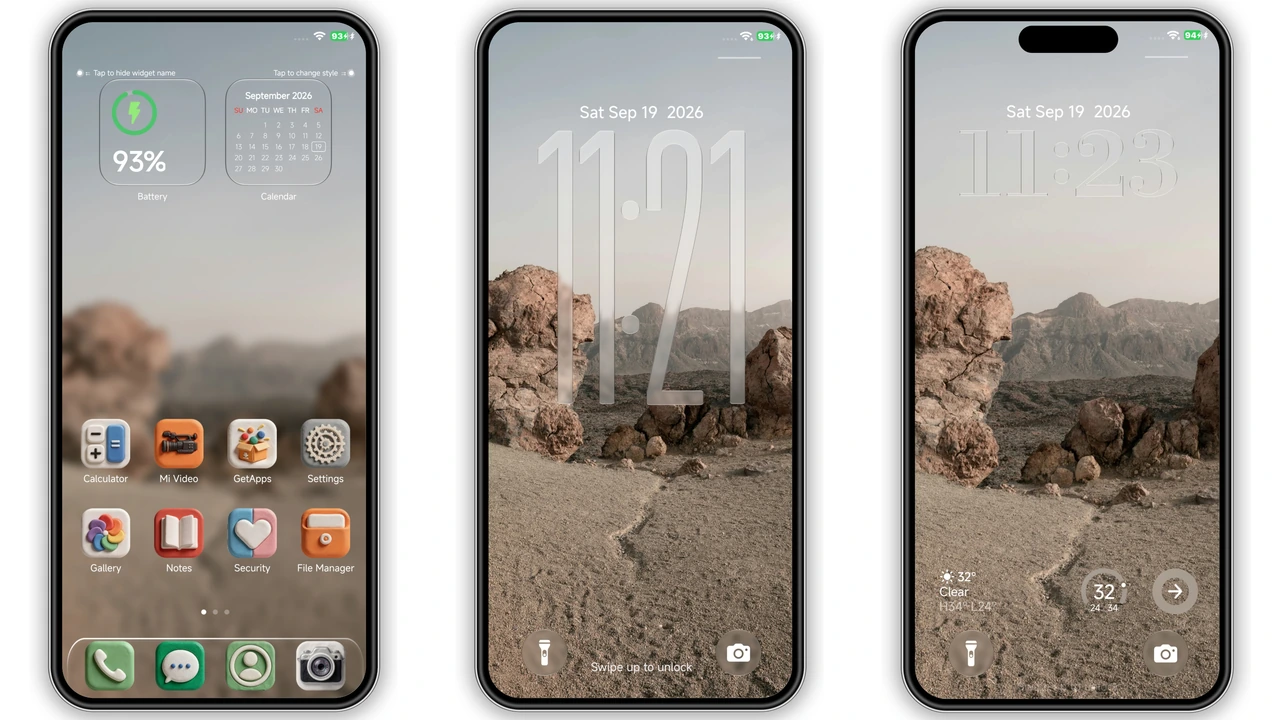
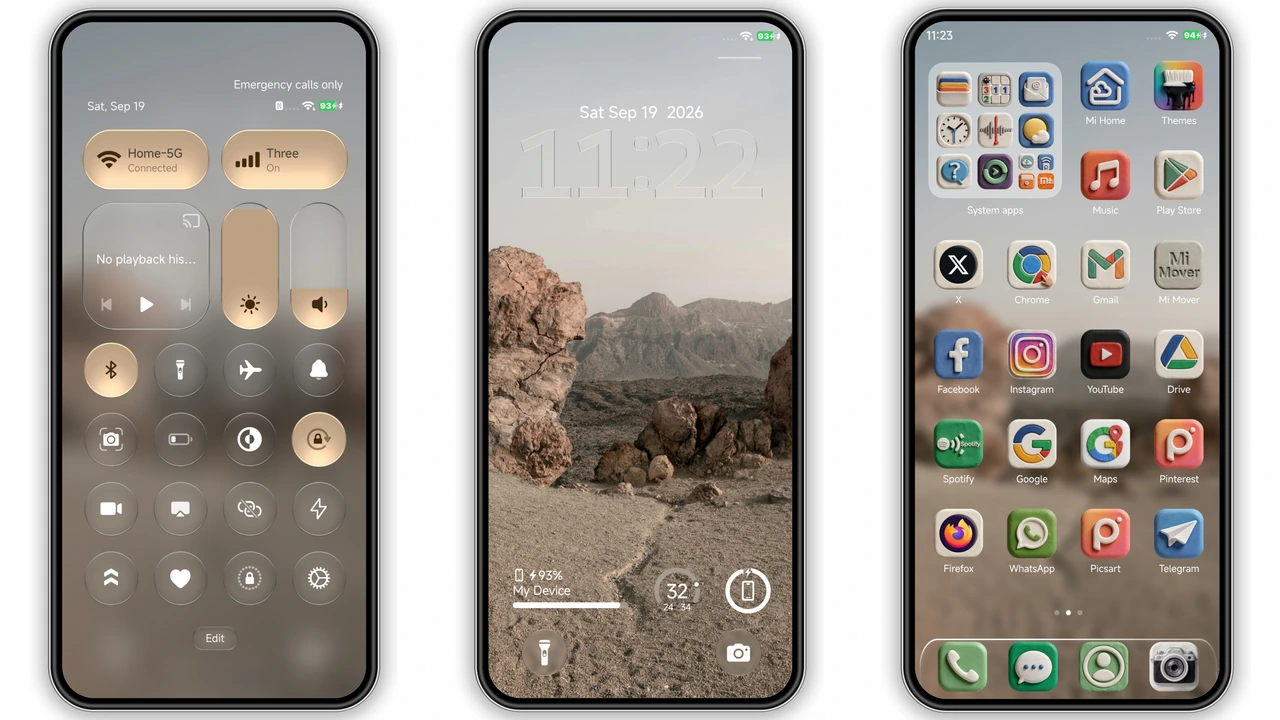
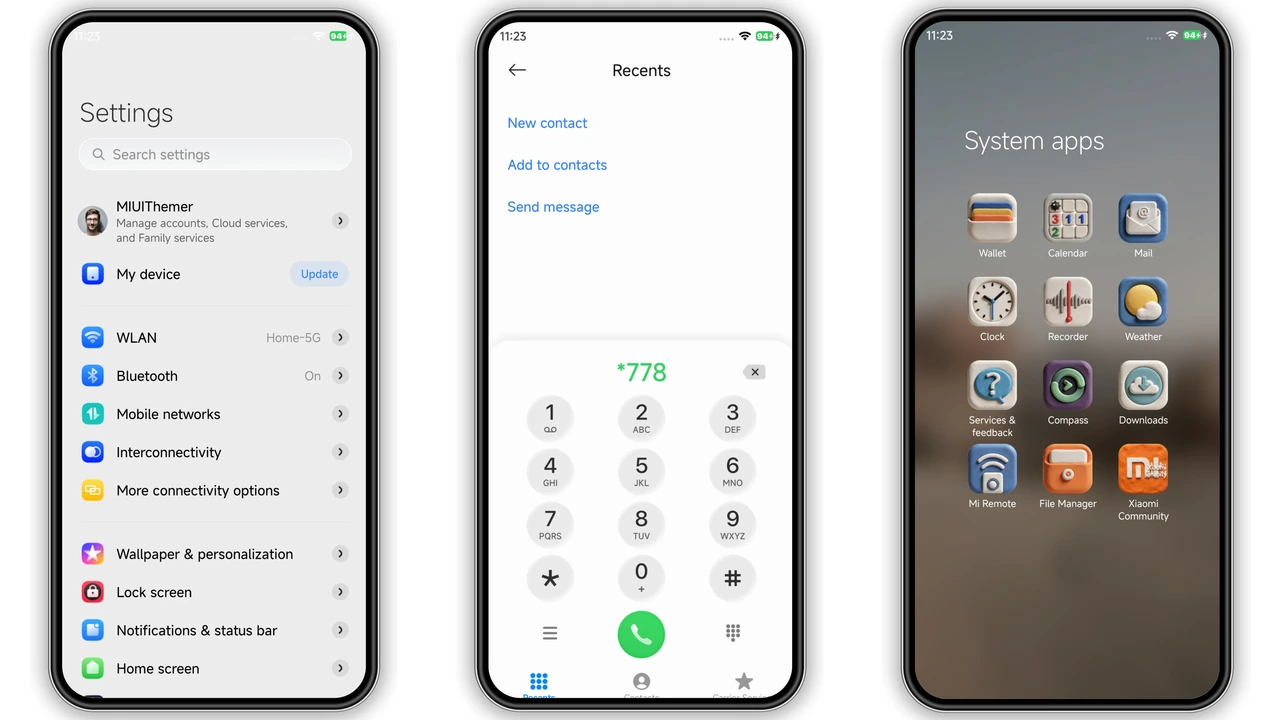
Clay‑Morphed Icons Bring Playful Depth
Icons shift like soft clay. 3D extrusion adds subtle shadow. Depth cues respond to touch. Palette stays muted, earth‑tone friendly. Icons retain recognizability despite shape change. Widget frames echo same clay texture. Home screen feels handcrafted. Battery, signal, Wi‑Fi icons follow same style. No harsh contrast, just gentle bevel. Users notice tactile feedback without extra code. Visual language matches modern minimalism. Clay effect works on both light and dark UI modes.
Suggested Read: Levender vs OCircle_UI: Which HyperOS Theme Wins?
Glass‑Locked Clock Adds Motion
Lock screen features semi‑transparent glass panel. Clock glides behind moving blur. Background wallpaper shows through faintly. Motion reacts to swipe gestures. Time updates smoothly, no jumpy ticks. Glass effect respects system accent color. Users report soothing visual during night. Animation consumes minimal power; OS throttles when idle. Compatibility extends to Always‑On Display. Glass panel adapts to notch or punch‑hole. No overlay artifacts observed after install.
Ideal Users & Device Fit
Fans of skeuomorphic design gravitate here. Creators seeking tactile UI find it useful. Minimalists enjoy subtle depth without clutter. Device owners with HyperOS 2.0 or 3.0 see full effect. MIUI 14 users also benefit. POCO, Redmi, Xiaomi flagship models run theme flawlessly. Older devices with limited RAM may notice slight lag during animation. Users who dislike flashy neon palettes prefer this earthy aesthetic. Community members looking for free, high‑quality theme appreciate no‑cost nature. Developers can study clay‑morphism implementation for future projects.
Installation Flow & What to Expect
Download MTZ file from official theme store. Open Theme Store app, tap Import, select file. Apply theme, confirm changes. System may restart UI layer; expect brief black flash. First launch shows placeholder icons while assets load. Wait a few seconds for complete rendering. After apply, check Settings → Theme for version number. If lock screen appears static, reboot device. No root required; works on stock ROMs. Custom ROM users follow same import steps. Ensure enough storage; theme occupies ~57 MB. Backup current theme before switching, in case you want revert.
Pros and Cons
• Pros
• Clay‑style icons add tangible depth
• Glass lock screen provides smooth motion
• Free, no hidden fees
• Wide compatibility across HyperOS and MIUI
• Low CPU impact, battery‑friendly
• Cons
• Slight performance dip on low‑end devices
• No built‑in dark‑mode toggle; follows system theme
• Limited customization beyond default palette
• Requires manual import on custom ROMs
Theme Preview
Download Links
Use the buttons below to open the theme file and the supporting link.
OX CLAY Theme mtz File
Helpful links
More Theme Updates
For more curated HyperOS and MIUI theme updates, visit Hyper OS x MIUI .