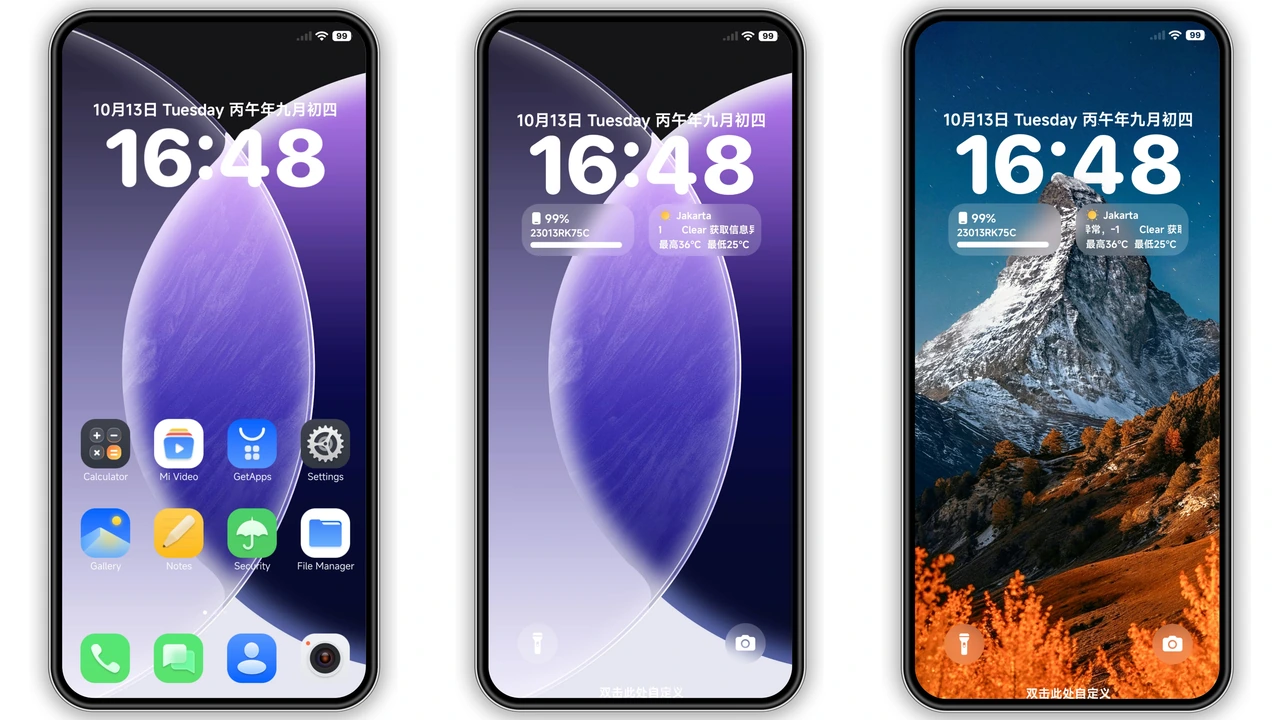
Ever feel like your phone's interface needs a breath of fresh air? A visual reset that’s clean, modern, and just different? If you're rocking a Xiaomi, Redmi, or POCO device running HyperOS or MIUI, then you're in luck. We've stumbled upon a gem that promises to transform your daily digital companion: the Whiteblur HyperOS Theme by the talented designer DAMI.
This theme isn't just a superficial coat of paint; it’s a comprehensive overhaul designed to infuse your smartphone with a sense of calm and sophistication. Forget cluttered screens and jarring color palettes. Whiteblur embraces clarity, offering a minimalist yet impactful design that feels both premium and incredibly usable.
Parameter · Value
Designer · DAMI
Size · 7.69 MB
Format · MTZ
Compatibility · HyperOS, MIUI
A Fresh Canvas: Diving into Whiteblur's Design
At its core, Whiteblur delivers on its name: a beautifully executed white and transparent aesthetic that truly stands out. Imagine a pristine, almost ethereal interface where elements subtly blur into the background, creating depth without distraction. The transparency isn't overdone; it’s just enough to add a modern, airy feel, allowing your chosen wallpaper to peek through gracefully without overwhelming the UI.
The icons are a highlight here. They’re meticulously redesigned, moving away from stock shapes to embrace a uniform, clean, and often minimalist style that perfectly complements the theme's transparent nature. Each icon feels thoughtfully crafted, ensuring visual consistency across your app drawer and home screens. This isn't just about changing colors; it's about refining the very essence of how your apps are presented, making navigation feel more intuitive and visually pleasing.
Beyond the home screen, Whiteblur extends its magic to critical system elements. The status bar receives a fresh treatment, often with subtle, refined indicators that blend seamlessly. Notifications and quick toggles feel lighter, less intrusive, and more elegant. The lock screen is another area where DAMI's design shines. Expect a cool, uncluttered layout that prioritizes essential information while maintaining the theme's signature transparent aesthetic. Even the Always-on Display (AOD) gets a stylish upgrade, ensuring that even when your screen is 'off,' it still exudes that Whiteblur charm. While the theme is predominantly white and transparent, it subtly incorporates hints of color, often a soft purple, in accents like progress bars, toggles, or specific UI elements, providing a pleasant contrast and preventing the interface from feeling too stark. This thoughtful use of color adds character without compromising the minimalist vision.
Suggested Read: Macaron Style Kit – Fresh Look for Redmi Note & Poco Series
Is Whiteblur Your Next Visual Upgrade?
So, who is Whiteblur for? If you're someone who appreciates a clean, uncluttered digital environment, this theme is practically tailor-made for you. It’s perfect for users who are tired of heavy, dark, or overly vibrant themes and crave a sense of calm and order on their device. If your ideal smartphone aesthetic leans towards modern, sophisticated, and understated elegance, Whiteblur will resonate deeply.
This theme particularly appeals to those who enjoy personalizing their device but want to maintain a professional or sleek look. It’s also a fantastic choice for anyone looking to make their Xiaomi, Redmi, or POCO phone feel distinct from the default stock look, without resorting to flashy or overly complex designs. If you find joy in subtle details, well-aligned elements, and a refreshing user experience, Whiteblur offers a compelling reason to make the switch. It's a theme that enhances readability and reduces visual fatigue, making daily interactions with your phone a more pleasant experience.
Getting Started: Applying the Whiteblur Theme
Ready to give your device this transparent makeover? The installation process is straightforward, though it varies slightly depending on whether you're running a Global Stable ROM or a Custom ROM. Here’s how to get Whiteblur up and running:
For HyperOS or MIUI Global Stable ROMs (Stock ROMs):
1. Browser Choice Matters: Start by opening a web browser. Firefox is often recommended for this step, as some other browsers might not handle the redirect correctly.
2. Access the Theme Store: You'll need to locate the official theme link. Clicking this link will typically open a Xiaomi theme page, which might appear in Chinese. Don't worry, this is normal.
3. Open in App: Look for an option, usually a three-dot menu or similar icon in the browser, and select 'Open in app.' This action will redirect you directly to the official Xiaomi Theme Store application on your device.
4. Download and Apply: Once in the Theme Store app, you can download Whiteblur. After the download completes, simply tap 'Apply' to activate the theme on your phone.
Pro Tip: If the 'Official Theme Store Link' doesn't seem to work or leads to an error, try opening the page in your default Xiaomi browser or Chrome and repeat the steps. Browser compatibility can sometimes be finicky.
For MIUI 11, 12, 13, 14, or HyperOS Based Custom ROMs (e.g., Xiaomi.EU, MIUIRoom):
1. Download the MTZ File: First, you'll need to download the Whiteblur theme's MTZ file to your device. This file contains all the theme's assets.
2. Open Theme Store App: Launch the pre-installed Theme Store application on your phone.
3. Navigate to Themes: Within the Theme Store, find and tap on the 'Themes' option.
4. Import the MTZ: Scroll down to the bottom of the themes list and look for an 'Import' button or option. Tap it.
5. Select and Apply: Browse your device's storage to locate the downloaded Whiteblur MTZ file. Select it to import, then apply the theme.
Important Note for All Users: After applying any new theme, it's always a good practice to restart your device. This helps ensure all theme elements load correctly and prevents any potential overlapping or display issues, giving you the best possible experience right from the start. Whiteblur has been rigorously tested and is reported to work perfectly without issues once applied correctly.
The Good & The Not-So-Good: A Quick Take
Pros:
• Stunning Aesthetic: A truly fresh, transparent, and minimalist design.
• Cohesive Overhaul: Transforms icons, lock screen, status bar, and AOD for a unified look.
• Completely Free: No hidden costs, just pure visual upgrade.
• Lightweight Design: At just 7.69 MB, it's optimized for smooth performance.
• Broad Compatibility: Works across a wide range of HyperOS and MIUI versions.
Cons:
• Global ROM Installation Nuances: Requires specific browser handling and navigating a Chinese theme store page, which can be a minor hurdle for some.
• MTZ File Management for Custom ROMs: While straightforward, it still involves manual file handling for custom ROM users.
• Specific Aesthetic: The minimalist, white-transparent style won't appeal to everyone looking for vibrant, colorful, or heavily customized themes.
The Whiteblur HyperOS Theme is more than just a skin deep change; it's an invitation to experience your Xiaomi, Redmi, or POCO device with renewed clarity and elegance. If you're ready to ditch the visual clutter and embrace a design that's both striking and understated, then give Whiteblur a spin. Your phone (and your eyes) will thank you.
Theme Preview

Download Links
Use the buttons below to open the theme file and the supporting link.
Whiteblur Theme mtz File
Helpful links
More Theme Updates
For more curated HyperOS and MIUI theme updates, visit Hyper OS x MIUI .