Parameter · Value
Designer · VK Theme
Size · 86.3 MB
Format · MTZ
Compatibility · HyperOS / MIUI
Midnight Azure Lock Screen & Widgets
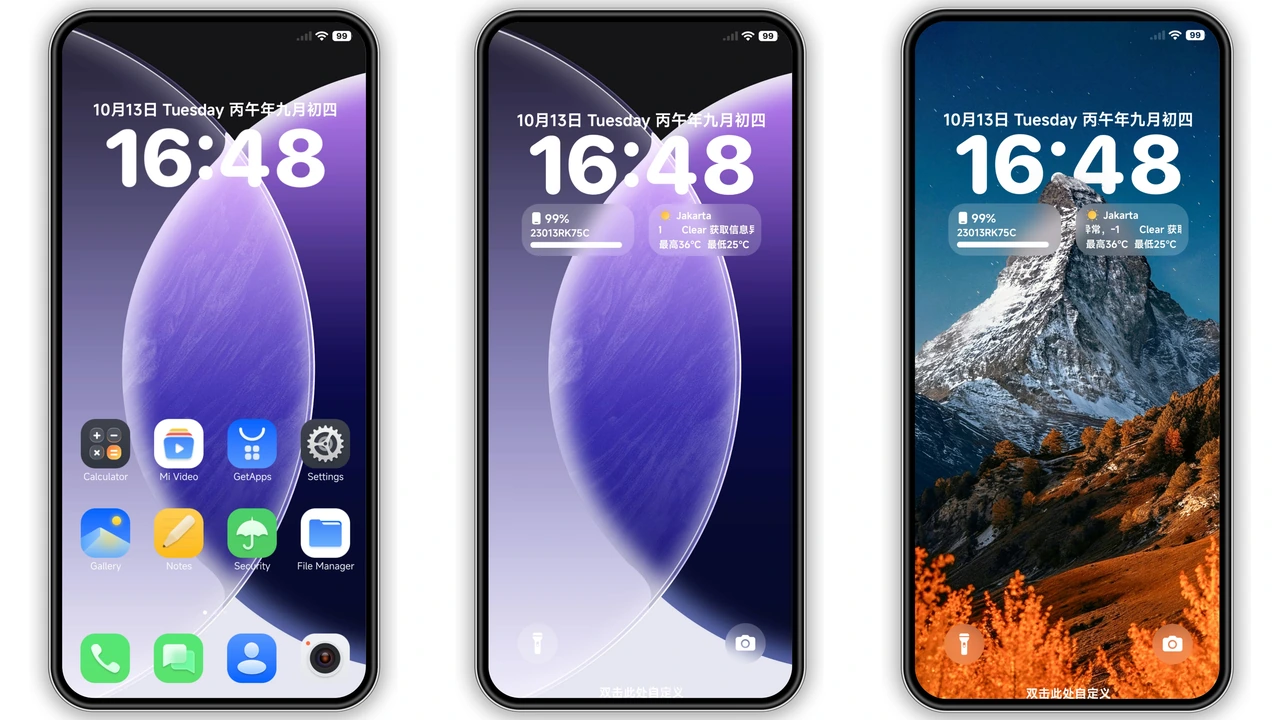
The first thing you notice is the lock screen. A gradient of navy fading into electric teal frames the time, while the notification bar adopts a subtle glassy blur. Widgets follow the same palette: a digital clock with thin sans‑serif numerals, a weather widget that uses thin line icons, and a calendar strip that highlights the current date in bright cyan. The effect feels like stepping into a night‑city UI, yet it stays readable under sunlight thanks to high contrast text.
Suggested Read: Step‑by‑Step Guide to Installing the Dunhuang MTZ Theme on HyperOS
Iconography that Pops in Blue
All system icons receive a custom makeover. The default round shapes are retained, but each icon is over‑lined with a thin cyan stroke, giving depth without clutter. App icons such as Camera, Gallery, and Settings adopt a glossy finish that catches the eye on dark mode. Even third‑party apps blend in because the theme includes a broad set of overlay packs, from social media to productivity tools. Users who love cohesive visual language will appreciate the consistency.
System‑wide UI Refresh & Control Center
Beyond the lock screen, the theme rewires the entire UI. The navigation bar adopts a semi‑transparent dark background, while the status icons glow in a muted blue. Settings menus sport rounded corners and a subtle shadow, making each toggle feel tactile. The HyperOS Control Center receives a new layout: quick‑toggle tiles are spaced evenly, each highlighted with a soft blue halo when activated. Dialer and Messaging apps inherit the same accent color, turning routine interactions into a unified experience.
Installation Walkthrough & What to Expect
1. Open the Theme Store app on your device.
2. Search for “VK Blue” or locate it via the official theme link.
3. Tap Download; the MTZ file (86.3 MB) saves to internal storage.
4. After download, the store automatically prompts you to apply the theme.
5. Confirm, then restart the device for the lock‑screen changes to take effect.
For custom ROM users (Xiaomi.eu, MIUIRoom, etc.), the steps differ slightly:
• Open Theme Store → Import → navigate to the MTZ file → Apply.
• A quick reboot smooths out any lingering animation glitches.
The theme is lightweight; it does not bloat RAM or affect battery life noticeably. Users report a smooth transition from stock to VK Blue within seconds. If you encounter a black screen after applying, a single reboot resolves the issue.
Pros and Cons
• Pros
• Cohesive blue aesthetic across lock screen, icons, and UI.
• High‑contrast text ensures readability in bright environments.
• Wide icon pack coverage reduces the need for additional overlays.
• Minimal performance impact; smooth animations.
• Cons
• Requires HyperOS or MIUI 14+; older MIUI versions may miss some elements.
• Lock‑screen password hint is embedded in the theme description; users must copy it manually.
• Custom ROM import adds an extra step compared to direct store install.
Overall, VK Blue delivers a polished, immersive look that suits anyone craving a bold, tech‑savvy makeover for their Xiaomi, Redmi, or POCO device. Its balanced mix of visual flair and system stability makes it a strong candidate for daily use.
Theme Preview


Download Links
Use the buttons below to open the theme file and the supporting link.
Download VK Blue💙 MTZ File
Helpful links
More Theme Updates
For more curated HyperOS and MIUI theme updates, visit Hyper OS x MIUI .