Parameter · Value
Designer · Maidul Islam
Size · 48.2 MB
Format · .mtz
Compatibility · HyperOS 3.0 / MIUI
Vibrant Neon Journey: Visual Highlights
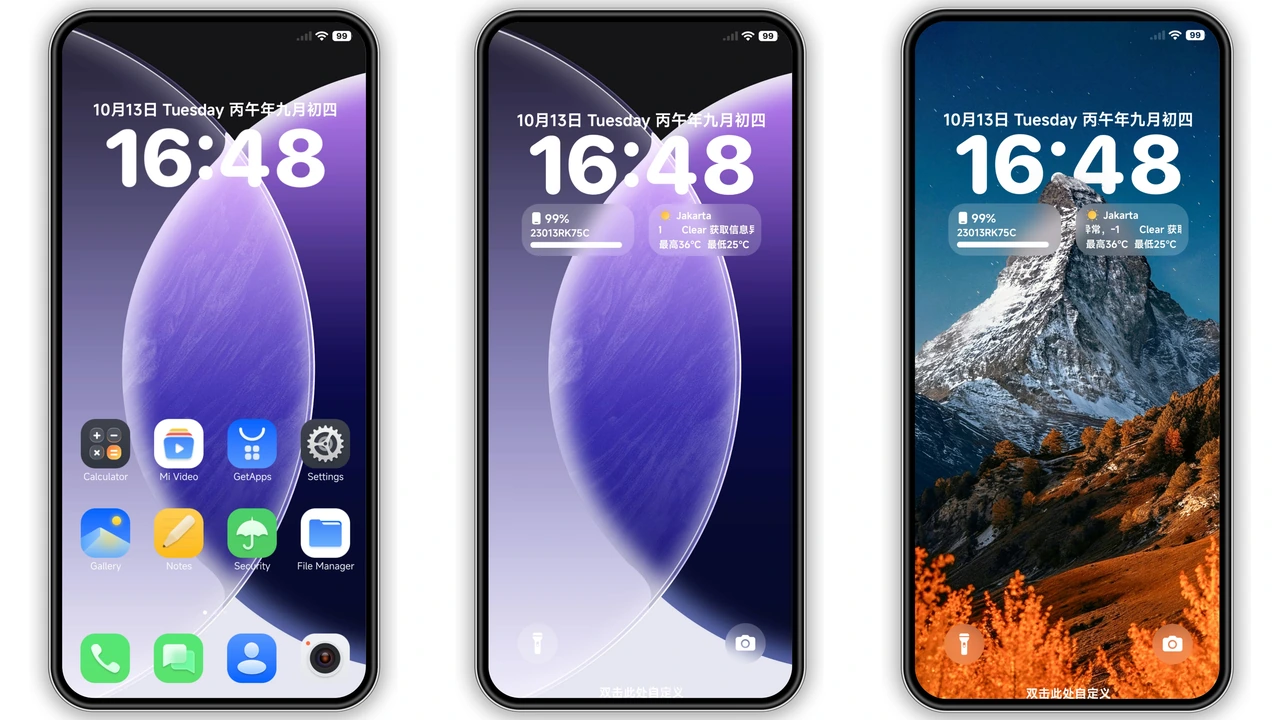
TripM drops a bold neon palette over the entire UI. Lock‑screen widgets glow with electric blues and magentas, while the icon set adopts a sleek, slightly rounded silhouette. Backgrounds feature subtle depth‑effect wallpapers that shift as you swipe, giving the impression of a living canvas. The Control Center receives a refreshed layout: toggle icons gain a thin neon outline, and the quick‑access bar now slides in with a smooth fade‑in animation. Even the dialer adopts the same color language, turning every call‑screen into a mini‑showcase.
Suggested Read: UI 8.1 HyperOS vs iOS‑Style MIUI Theme: Which Fits Your Phone?
Who’ll Love TripM? Ideal Users
• Night‑owls & gamers who thrive on high‑contrast, eye‑catching UI.
• Design enthusiasts seeking a cohesive, premium‑look without third‑party launchers.
• Xiaomi, Redmi, POCO owners wanting a HyperOS‑specific makeover that respects native navigation gestures.
• Minimalists with a twist: the theme strips away clutter yet keeps a striking accent color for key actions.
If you enjoy iOS‑style smoothness mixed with a cyber‑punk flair, TripM feels like a natural fit.
Compatibility & Device Reach
TripM declares full support for HyperOS 3.0 and MIUI‑based skins. It works on any device that runs the official HyperOS 3.0 build—Xiaomi, Redmi and POCO flagship and mid‑range models alike. Custom ROM users (Xiaomi.eu, MIUIRoom, HyperOS CN, etc.) can still import the .mtz file manually, though occasional layout quirks may appear if the ROM heavily modifies system UI layers. The theme does not require root access; all changes happen through the native Theme Store or the Import function.
Installation Walkthrough & Tips
1. Official store route – Open the Theme Store app, tap the “Official Theme Store” button, locate TripM, and hit Download. The store handles extraction and applies the theme automatically.
2. Manual MTZ import – Download the .mtz file, launch Theme Store → Import, browse to the file, confirm import, then select TripM to activate.
3. Post‑install polish – After applying, perform a quick reboot. This clears cached UI elements and ensures the new icons and wallpapers load without flicker.
4. Backup your current theme – Use the Theme Store’s Export feature before switching. Restoring is a one‑tap process if you need to revert.
5. Check for system updates – Occasionally a HyperOS patch may adjust UI component IDs, causing a minor visual glitch. Re‑apply the theme after the update to refresh assets.
Pros and Cons
• Pros
• Eye‑catching neon aesthetic that stays consistent across apps.
• Deep integration: lock screen, Control Center, dialer, and system settings all receive custom assets.
• Lightweight (48 MB) – no noticeable performance hit.
• Works on both stock HyperOS and popular custom ROMs.
• Cons
• Dark‑mode‑centric; bright‑mode users may find contrast too strong.
• Some third‑party apps (e.g., non‑MIUI launchers) ignore the icon pack.
• Minor layout shift on heavily customized ROMs; may need a quick reboot.
Overall, TripM delivers a polished, neon‑driven overhaul that feels native to HyperOS 3.0 while giving your Xiaomi, Redmi or POCO device a fresh personality. Its modest size, straightforward installation, and broad compatibility make it a top pick for anyone looking to break free from the stock look.
Theme Preview


Download Links
Use the buttons below to open the theme file and the supporting link.
Download TripM MTZ File
Helpful links
More Theme Updates
For more curated HyperOS and MIUI theme updates, visit Hyper OS x MIUI .