Parameter · Value
Designer · OXFURY
Size · 86.2 MB
Format · MTZ, ZIP
Compatibility · HyperOS 3.0, MIUI (global, custom ROMs)
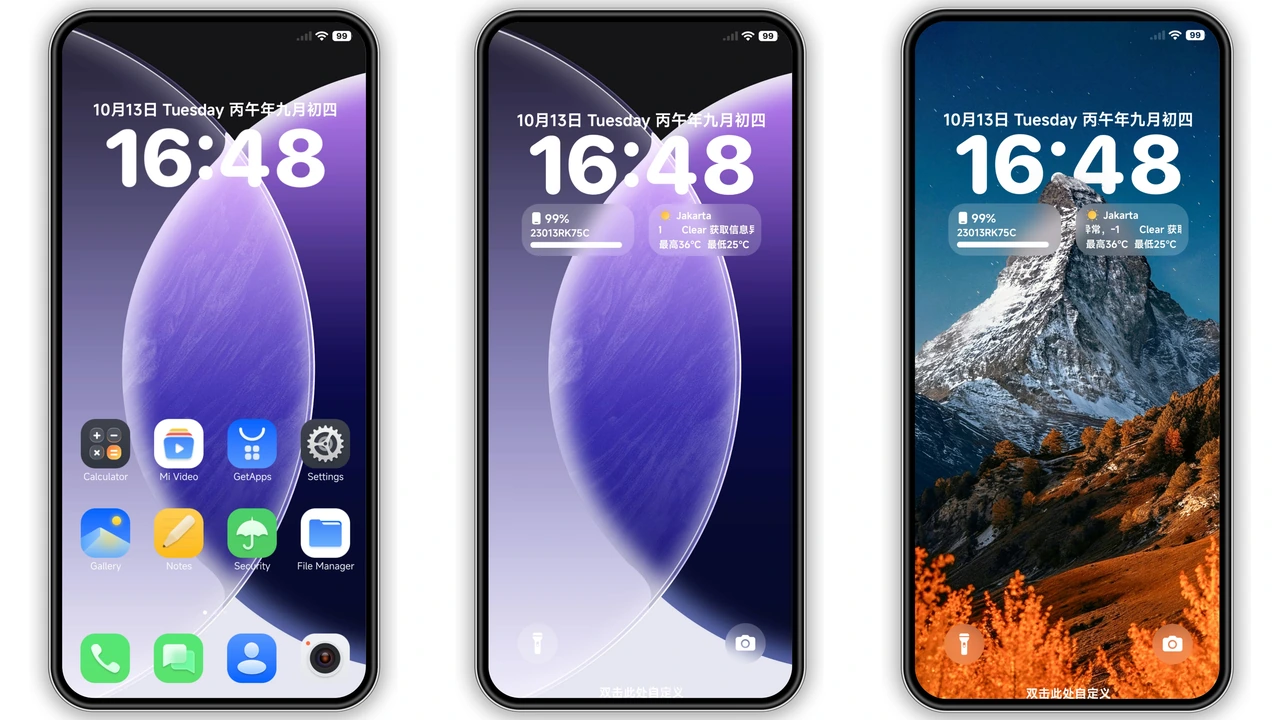
iOS‑Inspired Lock Screen with Super Capsule
The first thing you notice is the lock screen. MS M1 mimics Apple’s iOS 27 layout, complete with a centered time, subtle date overlay, and a “Super Capsule” widget that aggregates weather, calendar events, and quick‑access shortcuts. The capsule glides in with a soft fade‑in animation, giving the device a premium feel without draining battery. The clock font is a clean San‑Francisco‑style typeface, while the background can be swapped between the supplied depth‑effect wallpaper or any personal image. The lock‑screen controls (camera, flashlight, swipe‑up) retain their original positions, so you never lose familiarity.
Suggested Read: Encounter Beautiful vs Moonlit Serenity: Which Theme Wins on HyperOS & MIUI
Iconography and Color Palette: Bold Yet Balanced
All icons have been re‑drawn from scratch. They keep the familiar Xiaomi silhouette but adopt a flatter, slightly rounded aesthetic that leans toward iOS minimalism. Primary colors—midnight blue, electric teal, and soft amber—are used sparingly to highlight system apps like Phone, Messages, and Settings. The rest of the UI stays in a muted grayscale, letting the accent colors pop. This balance appeals to users who enjoy a clean look but still want a hint of personality. The icon set scales well on both high‑resolution displays and older panels, thanks to vector‑based assets bundled in the MTZ.
Depth‑Effect Wallpaper and Widget Enhancements
Beyond the lock screen, the theme ships a “Depth Effect” wallpaper packaged as a ZIP. When applied, the home screen gains a subtle parallax motion that reacts to device tilt, creating a sense of depth without the performance hit of live wallpapers. The theme also introduces custom widgets: a digital clock with a sleek border, a battery‑percentage ring, and a mini‑weather panel that matches the lock‑screen capsule. All widgets inherit the same rounded‑corner style, ensuring visual cohesion across the home screen.
Installation Walkthrough for Stock and Custom ROMs
Stock HyperOS / MIUI
1. Open the download link labeled “Official Theme Store.”
2. The Themes app opens automatically; tap Download.
3. After download, tap Apply.
4. Restart the device for a clean transition.
Custom ROMs (Xiaomi.eu, MIUIRoom, HyperOS CN, etc.)
1. Download the MS M1.mtz file.
2. Launch the Themes app → Import.
3. Locate the MTZ file via file manager and confirm.
4. Theme appears in the list; tap Apply.
5. Reboot if UI glitches appear.
Both methods are straightforward; the only difference is the manual import step for custom ROMs. The theme’s size (86.2 MB) means it fits comfortably on most devices, even those with limited internal storage.
Pros and Cons
Pros
• iOS‑style lock screen feels premium and familiar.
• Cohesive icon set with tasteful accent colors.
• Depth‑effect wallpaper adds subtle dynamism.
• Works on both stock HyperOS and major custom ROMs.
• Lightweight; no noticeable battery drain.
Cons
• No built‑in dark‑mode toggle; relies on system dark mode.
• Super Capsule widget cannot be repositioned.
• Some MIUI‑specific system apps retain original icons.
• Requires a reboot for flawless UI refresh.
Theme Preview


Download Links
Use the buttons below to open the theme file and the supporting link.
Download MS M1 MTZ File
Download Depth Effect Wallpaper
Helpful links
More Theme Updates
For more curated HyperOS and MIUI theme updates, visit Hyper OS x MIUI .