Parameter · Value
Designer · BK
Size · 40.2 MB
Format · MTZ
Compatibility · HyperOS / MIUI
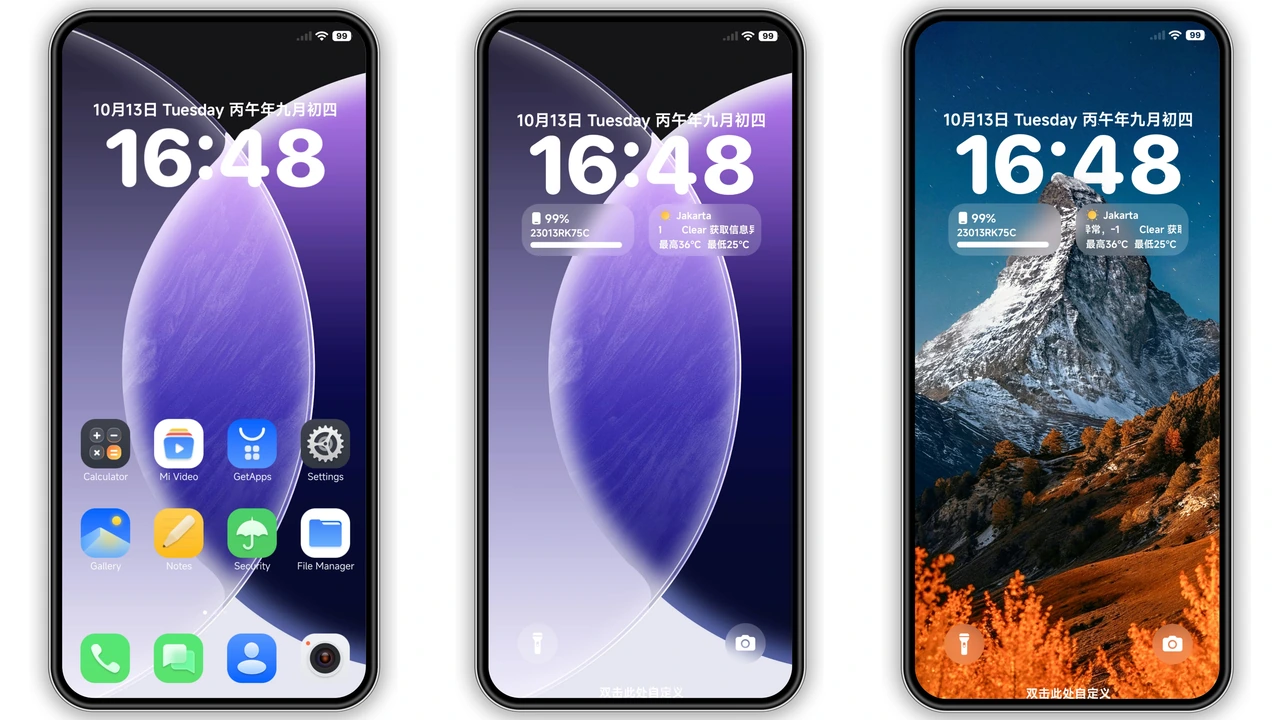
Bold Dark iOS Icons with Jelly‑Like Glow
Icons replace stock visuals for fresh look. Shapes stay true to iOS for instant recognition. Shadows deepen for night comfort. Colors mute to dark palette for reduced glare. Glyphs sharpen for crisp readability. Animations glide smoother than stock. Users notice difference within seconds. Theme respects system accent for harmony. Icons scale uniformly across launcher. Battery icons adopt sleek outline. App folders inherit same dark border. Notification badges stay vivid against black. Overall icon set feels premium and cohesive.
Suggested Read: How to Install ZhutoddAsw HyperOS Theme on Xiaomi & Redmi – Step‑by‑Step Guide
Fluid Lock Screen Overhaul for Night Owls
Lock screen wallpaper swaps to high‑resolution art. Images blend with dark UI for seamless flow. Clock font enlarges for quick glance. Date style mirrors iOS layout. Swipe gestures remain intact. Fingerprint prompt adopts subtle glow. Face unlock animation matches theme hue. Weather widget adopts minimal icons. Music controls appear translucent. All elements respect dark mode automatically. Users report smoother wake‑up experience. Battery indicator stays visible despite darkness. No lag observed during lock transitions.
Seamless Integration Across System Apps
Dialer adopts rounded keys with dark backdrop. Call log icons inherit iOS style. Messaging bubbles turn soft gray for readability. Settings menu headings gain subtle highlight. Control Center icons switch to matching set. Volume slider track darkens for contrast. Camera app retains original UI but icons change. Gallery thumbnails adopt thin border. File manager icons follow same design language. System fonts stay unchanged for stability. Theme does not alter core functionality. Performance impact stays negligible on modern devices.
Installation Walkthrough & Tips
Download MTZ file from trusted source. Open Theme Store app. Tap Import option. Locate downloaded MTZ file. Confirm import prompt. Wait for processing to finish. Theme appears in My Themes list. Select theme and apply. Device restarts automatically for full load. If visual glitches appear, perform manual reboot. For custom ROM users, use Theme Store import method as well. Ensure storage space exceeds theme size. Clear cache if installation stalls. Keep OS version up‑to‑date for best compatibility. Do not mix with conflicting icon packs.
Pros and Cons
• Pros
• Dark iOS icons deliver sleek aesthetic.
• Lock screen redesign enhances night usability.
• System‑wide consistency improves visual harmony.
• Lightweight file size keeps storage impact low.
• Easy installation via native Theme Store.
• Cons
• No official designer credit beyond placeholder.
• Some third‑party apps retain original icons.
• Dark mode only; no light variant provided.
• Minor overlap issues may require reboot.
Theme Preview


Download Links
Use the buttons below to open the theme file and the supporting link.
Download JellyB MTZ File
Helpful links
More Theme Updates
For more curated HyperOS and MIUI theme updates, visit Hyper OS x MIUI .