Parameter · Value
Designer · BK
Size · 40.28 MB
Format · MTZ
Compatibility · HyperOS, MIUI
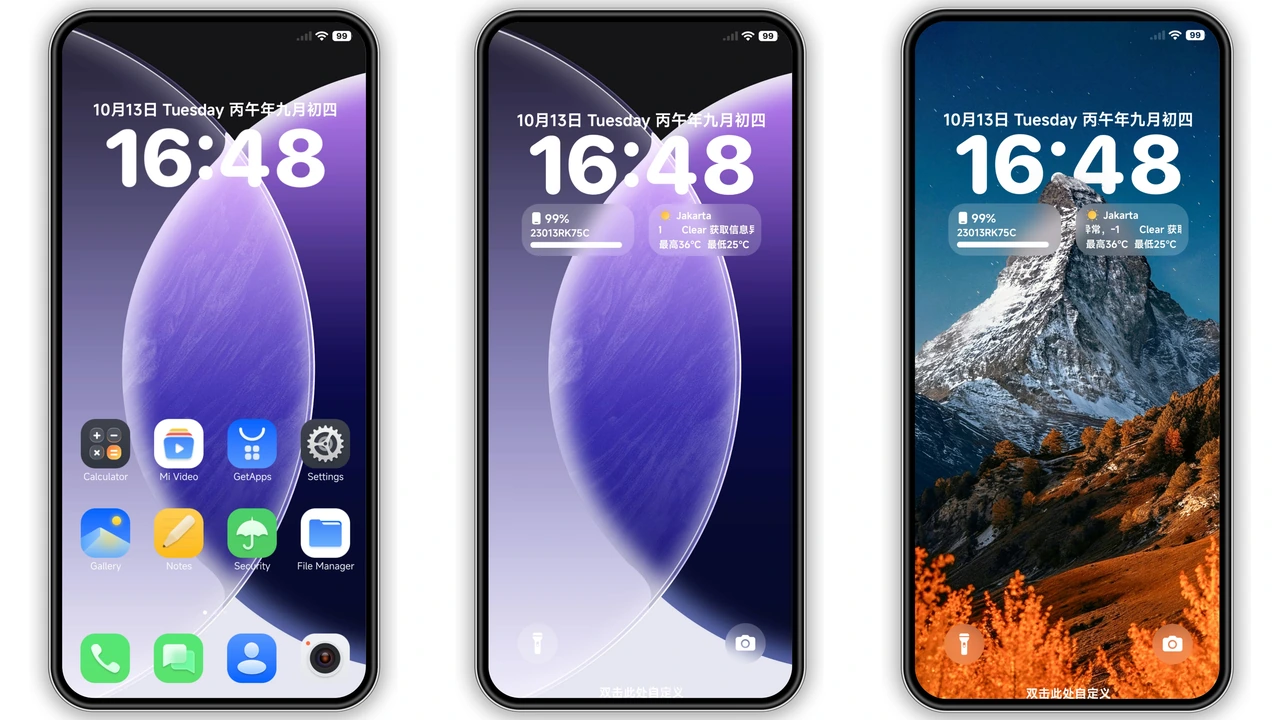
Deep‑Sea Dark Palette
JellyB embraces a midnight‑blue ocean vibe. Backgrounds shift from charcoal to deep teal, giving the UI a moody yet refreshing feel. Status bar icons adopt a muted sea‑green glow that pops against the dark base. The color choices stay consistent across menus, settings, and quick‑toggle panels, preventing visual fatigue during long sessions.
Suggested Read: Grey Building V15: A Device‑Specific HyperOS Theme for Redmi, POCO & Mi Phones
Iconography that Marries Sea and Black
All icons receive a custom overhaul. Core apps wear sleek black silhouettes, while media and utility icons sport subtle gradients reminiscent of waves. The contrast is intentional: black anchors the layout, sea tones add personality. Rounded corners remain, preserving the familiar MIUI silhouette while delivering a fresh identity.
Lock Screen & AOD Experience
Lock screen receives a dynamic wallpaper that ripples with a faint wave animation. Time and date use a thin sans‑serif typeface, colored in soft cyan for readability. The Always‑On Display mirrors the lock screen’s palette, showing notifications in white text against the dark sea backdrop. Battery indicator adopts a slim arc, matching the theme’s minimal aesthetic.
Installation Walkthrough for Stock & Custom ROMs
1. Download the MTZ file from the provided link.
2. Open the Themes Store app on your device.
3. Tap Import at the bottom of the Themes page.
4. Navigate to the downloaded MTZ and select it.
5. Apply the theme; reboot if prompted.
For custom ROMs (MIUI 11‑14, HyperOS‑based builds):
• Ensure the Themes Store app is installed (often bundled with the ROM).
• Follow the same import steps.
• After applying, perform a quick restart to clear any overlay glitches.
Pros and Cons
Pros
• Cohesive dark‑sea visual language.
• High‑resolution icons, no pixelation.
• Works on HyperOS 2.0 and MIUI 14 without tweaks.
• Lightweight; 40 MB footprint.
Cons
• Limited light‑mode variations.
• Some third‑party apps retain default icons.
• AOD animation may impact battery on older devices.
Overall, JellyB delivers a polished, ocean‑inspired dark theme that feels at home on Xiaomi, Redmi, and POCO phones. Its consistency across system UI elements makes it a solid choice for users craving a fresh look without sacrificing performance.
Theme Preview

Download Links
Use the buttons below to open the theme file and the supporting link.
JellyB Theme mtz File
Helpful links
More Theme Updates
For more curated HyperOS and MIUI theme updates, visit Hyper OS x MIUI .