Parameter · Value
Designer · TTQD
Size · 10.56 MB
Format · MTZ
Compatibility · HyperOS, MIUI
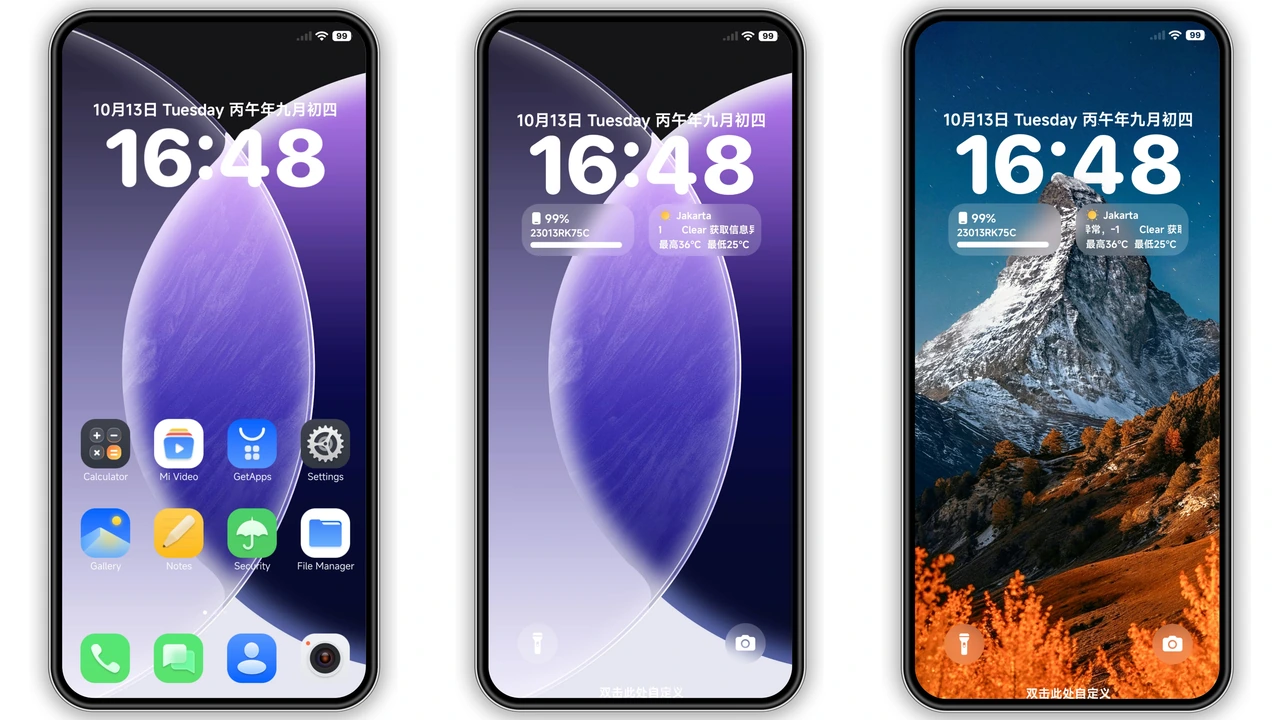
Vibrant Pixel‑Inspired Visuals
Haieye leans heavily on the classic Google Pixel aesthetic while injecting its own personality. Icons receive a subtle gradient that mimics the soft lighting of Pixel’s material design, yet the color palette shifts toward cooler blues and muted teal accents. Wallpapers showcase high‑resolution cityscapes and nature shots that feel both modern and calming. The status bar adopts a thin, translucent overlay, letting the background breathe without sacrificing readability. Lock screen animations are restrained—just a gentle fade that complements the overall minimalism. The Always‑On Display (AOD) is where Haieye shines: a crisp clock with a thin line separator, paired with a faint background blur that keeps the look elegant without draining the battery.
Suggested Read: Archive of Xiaomi 17 Max Abstract Wallpapers – HyperOS & MIUI
Who’ll Appreciate Haieye’s Aesthetic
If you gravitate toward clean, understated themes that still make a statement, Haieye is a natural fit. Pixel enthusiasts will recognize the homage, while Xiaomi fans will enjoy the fresh take that doesn’t clash with native UI elements. The theme works well on devices with OLED panels, where the deep blacks and subtle translucency truly pop. It also suits users who prefer a “professional‑casual” vibe—nothing flashy, yet enough visual polish to stand out from stock. Developers, photographers, and anyone who spends long hours scrolling will benefit from the reduced visual noise and the consistent iconography.
Installation Walkthrough & Expectations
1. Download the MTZ file from the provided link. The file size is modest, so it finishes quickly on most connections.
2. Open the Theme Store app on your HyperOS or MIUI device.
3. Tap the three‑dot menu, choose Import, then locate the downloaded MTZ file.
4. Confirm the import; the theme appears in your library.
5. Apply the theme. The system may prompt a quick restart—agree to ensure all elements load correctly.
During the apply process, you might notice a brief flicker as the new icons replace the old ones. This is normal; the system redraws the UI after the theme assets are swapped. After the restart, verify that the lock screen, AOD, and status bar reflect the new design. If any element appears misaligned, a second reboot usually resolves it. Keep an eye on battery consumption; Haieye’s AOD is optimized, but any theme that adds translucency can slightly increase draw‑over‑draw on older hardware.
Pros and Cons
Pros
• Cohesive Pixel‑inspired visual language.
• Light‑weight MTZ file, quick download.
• Smooth AOD with minimal battery impact.
• Works across HyperOS 2.0 and MIUI 14.
• Clear iconography improves readability.
Cons
• Translucent status bar may look washed on low‑end LCD screens.
• No dark‑mode specific tweaks; relies on system dark setting.
• Limited customization beyond the default palette.
• Requires Theme Store import; sideloading not supported.
Theme Preview

Download Links
Use the buttons below to open the theme file and the supporting link.
Haieye Theme mtz File
Helpful links
More Theme Updates
For more curated HyperOS and MIUI theme updates, visit Hyper OS x MIUI .