Parameter · Value
Designer · -
Size · Unknown
Format · MTZ
Compatibility · HyperOS / MIUI
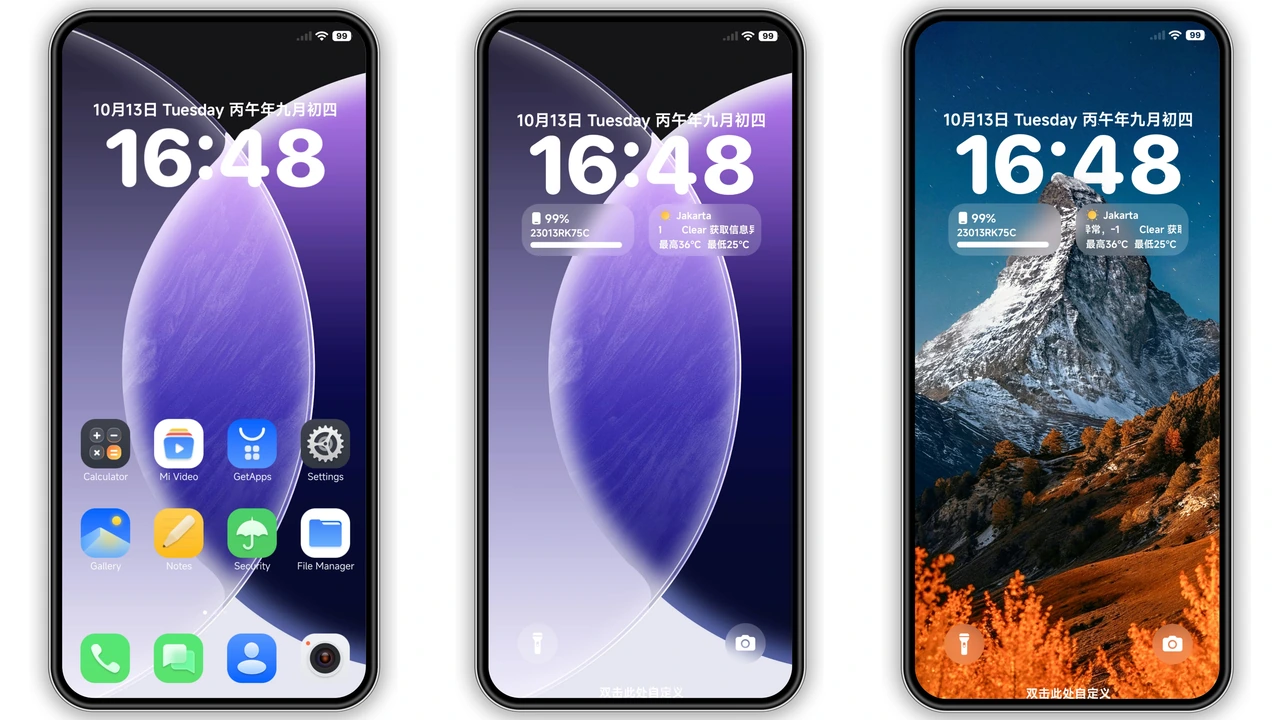
Celestial Blue‑Grey Aesthetic
Gemini Wings delivers a cool, metallic palette that blends deep navy with soft teal accents. Icons adopt a semi‑flat silhouette, subtle gradients, and a faint glow that mimics sunrise over a digital horizon. Edge‑lighting on charge animations adds a dynamic pulse, while the lock‑screen widget glows in sync with battery level. The overall feel is futuristic yet restrained, avoiding garish neon in favor of a calm, tech‑savvy vibe.
Suggested Read: Trending ‘Heavy‑Hearted Sunburst’ MTZ Theme Shines on HyperOS & MIUI
Ideal Users and Use‑Cases
Early adopters of HyperOS who crave a cohesive visual language will gravitate toward this pack. Gamers seeking a sleek backdrop for high‑performance devices find the minimal clutter helpful. Professionals who prefer a distraction‑free home screen appreciate the muted tones and clear glyphs. The design also suits users who enjoy customizing status‑bar elements—charging animation, battery progress, and side‑swipe gestures integrate seamlessly.
Device Compatibility and Performance
The MTZ file declares compatibility with HyperOS and MIUI, covering devices running the latest system builds. Because the pack relies on vector‑based assets, memory impact stays low; most phones report <10 MB RAM usage after applying the theme. No root access is required; the Theme Store handles installation. Users on older Android versions may notice slower transition animations, but core icons render correctly. Ensure your device’s theme engine is up‑to‑date to avoid rendering glitches.
Installation Walkthrough and Download Tips
1. Open the Theme Store on your device.
2. Tap “Import Theme” and locate the downloaded GeminiWings.mtz file.
3. Confirm the import; the system validates format and compatibility.
4. After import, select “Apply” to switch the icon set instantly.
5. Visit Settings → Display → Animation speed to fine‑tune the charge glow if desired.
Practical download notes: the MTZ file is bundled as a single archive; no external resources are required. Store the file in the “Downloads” folder for easy access. After applying, clear the Theme Store cache if any icons appear stuck. Re‑booting the device refreshes the launcher cache and resolves most visual hiccups.
Pros and Cons
Pros
• Cohesive blue‑grey palette matches many wallpapers.
• Low RAM footprint; smooth on mid‑range hardware.
• Integrated charging animation adds subtle flair.
• No root needed; native Theme Store handles install.
Cons
• Designer credit missing; no official support channel.
• Size unknown; large downloads may strain limited data plans.
• Minor scaling issues on devices with non‑standard icon grids.
• No built‑in dark‑mode toggle; relies on system theme.
Download Links
Use the buttons below to open the theme file and the supporting link.
Download File
Helpful links
More Theme Updates
For more curated HyperOS and MIUI theme updates, visit Hyper OS x MIUI .