Parameter · Value
Designer · 迷鹿向闲
Size · 19.4 MB (MTZ) / 36.7 MB (Backup)
Format · MTZ, Backup
Compatibility · HyperOS 1‑3, MIUI
A Stone‑Smooth Visual Journey
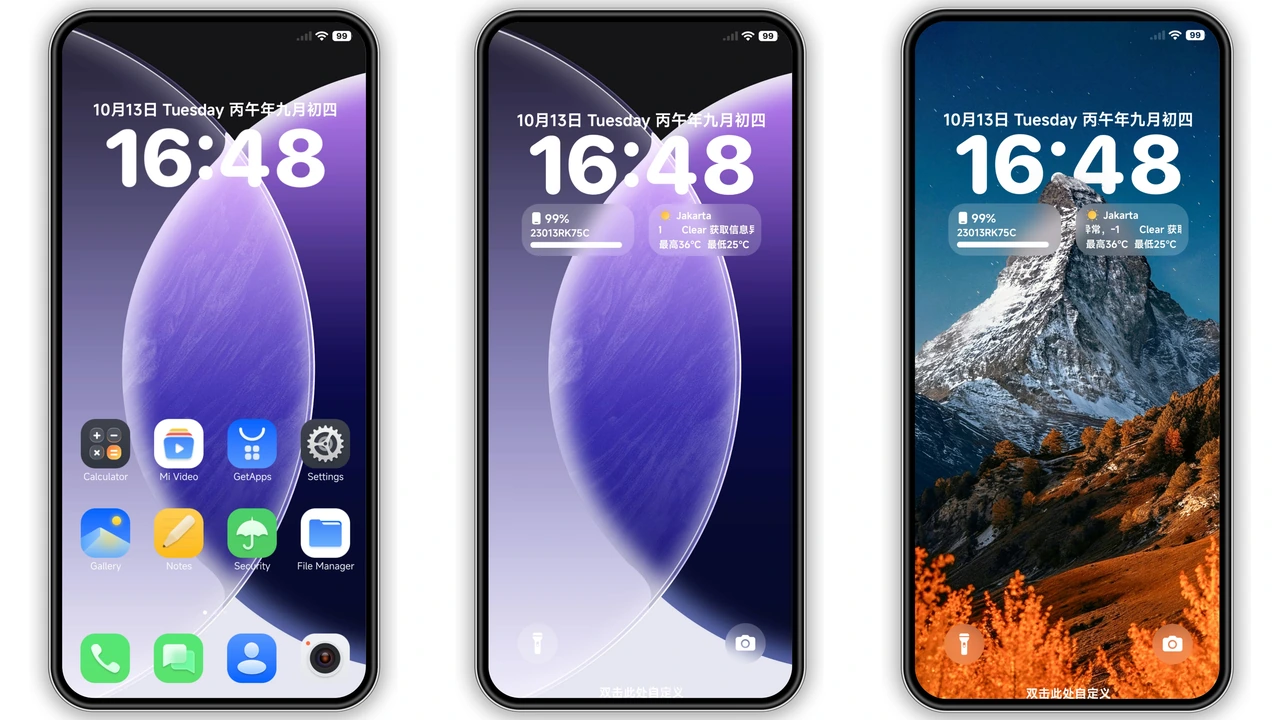
Floating Stone lands with a visual language that feels both weighty and ethereal. Icons are rendered in a semi‑transparent stone texture, each glyph subtly catching ambient light as you swipe. The lock screen adopts a floating panel that hovers over a blurred depth‑effect wallpaper, giving the illusion of a slab of stone suspended in mid‑air. System UI elements—dialer, settings, messages—receive the same matte finish, while the control centre adopts a darker backdrop that lets the stone icons pop. Motion is gentle: opening an app triggers a soft ripple, and returning to the home screen produces a faint dust‑settle animation. The overall palette leans toward cool greys and muted blues, but accent colors appear as thin neon outlines, preserving readability without breaking the minimalist vibe.
Suggested Read: Hands-On Guide: Install Kepal ApiiV2 HyperOS Dark Theme
Who’ll Love This Floating Aesthetic
The theme targets users who crave a premium, almost tactile feel without diving into full‑blown iOS mimicry. If you appreciate minimalism but still want a hint of personality, Floating Stone hits the sweet spot. Creative professionals who spend hours on their phone will notice the reduced visual clutter; the stone texture reduces eye strain compared to glossy icons. Gamers who enjoy a darker UI will find the contrast beneficial for battery life. Conversely, fans of bright, colorful skins may find the muted tones too restrained. The theme also appeals to those who enjoy customizing lock‑screen layouts, as the floating panel offers space for widgets, weather, or quick‑access shortcuts.
Installation Path: Global ROM vs Custom ROM
For devices running the official HyperOS or MIUI build, installation is a two‑click affair. Open the Theme Store, locate the “Floating Stone” entry, tap download, and apply. The store handles the MTZ import automatically, so no file manager juggling is required. After applying, a quick reboot ensures the new UI elements load correctly.
If you run a custom ROM—Xiaomi.eu, MIUIRoom, or HyperOS CN—the process shifts to manual import. First, download the MTZ file (19.4 MB). Launch the Theme Store, scroll to the Import option, and browse to the saved MTZ. The store will unpack the package, after which you can enable the theme. Some custom ROMs may also accept the backup file (36.7 MB). In that case, copy the backup to the internal storage, open the Themes app, choose “Restore from backup,” and select the file. Regardless of the route, a device restart after activation resolves any lingering cache glitches.
Pros and Cons
• Pros
• Cohesive stone‑texture UI that feels premium
• Lightweight MTZ version for quick installs
• Deep‑effect lock‑screen adds visual depth
• Compatible across HyperOS 1‑3 and MIUI builds
• No known bugs; stable on both global and custom ROMs
• Cons
• Muted palette may not suit fans of bright themes
• Limited accent color customization out of the box
• Backup file larger, consumes more storage
• Requires manual import on custom ROMs, adding a step
Overall, Floating Stone delivers a refined, minimalist experience that elevates Redmi and POCO devices without sacrificing performance. Its stone‑inspired aesthetic is both modern and timeless, making it a solid addition to any HyperOS enthusiast’s collection.
Theme Preview


Download Links
Use the buttons below to open the theme file and the supporting link.
Floating Stone Backup File
Download Floating Stone MTZ File
Helpful links
More Theme Updates
For more curated HyperOS and MIUI theme updates, visit Hyper OS x MIUI .