Parameter · Value
Designer · mydul
Size · 45.30 MB
Format · .mtz
Compatibility · HyperOS, HyperOS 2.0, HyperOS 3.0, MIUI
Midnight Minimalism Meets Corporate Edge
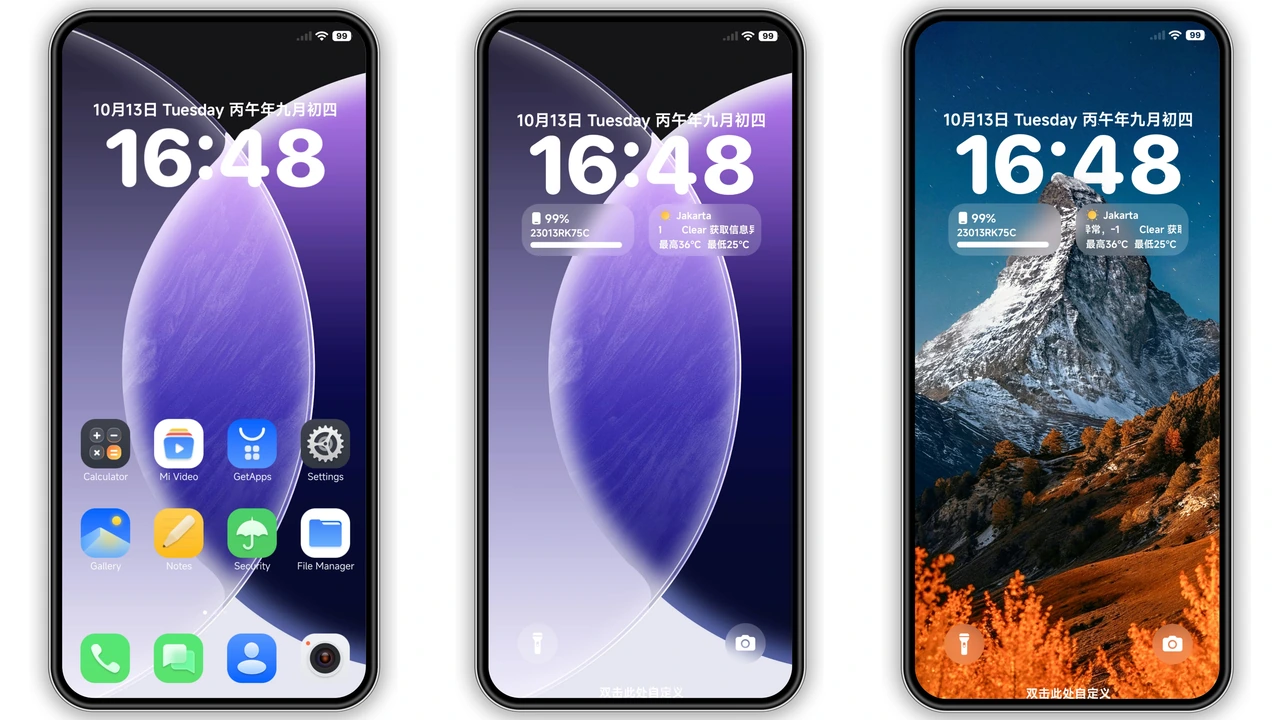
ELITEBOOK embraces a pure black palette. Icons receive flat, matte treatment; shadows disappear. Wallpapers showcase high‑contrast cityscapes, reinforcing a professional vibe. Status bar adopts thin white text, ensuring readability on dark backgrounds. Lock screen animates subtle gradients, never flashing. Always‑on Display mirrors the lock aesthetic, offering time and notifications without breaking the mood. The theme avoids decorative flourishes; every element serves clarity. Font weight stays regular, preserving legibility across apps. Overall, the visual language whispers authority while staying modern.
Suggested Read: Archive Spotlight: “烟花下的祝福” MTZ Theme for HyperOS & MIUI
Ideal Users: Professionals, Dark‑Mode Aficionados
Fans of minimalism gravitate here. Business users who need a distraction‑free interface find the theme useful. Gamers who prefer a dark backdrop also benefit, as battery usage drops on OLED screens. Creators who showcase their work on a sleek canvas appreciate the unobtrusive backdrop. Users tired of pastel MIUI skins discover a fresh, serious alternative. If you enjoy crisp lines, muted tones, and a no‑nonsense look, ELITEBOOK fits.
Device Compatibility and ROM Considerations
The theme declares support for HyperOS, HyperOS 2.0, HyperOS 3.0, and MIUI. It works on Xiaomi, Redmi, and POCO models that run these ROMs. Stock Global Stable ROMs accept the .mtz file directly via the Theme Store app. Custom ROMs such as Xiaomi EU, MIUIRoom, or other HyperOS‑based builds also load the file; import via Theme Store → Import → select .mtz. Ensure the device runs a version that recognises HyperOS theming; older MIUI‑based skins may reject the package. No root required; the theme respects system integrity.
Step‑by‑Step Installation and What to Expect
1. Download the ELITEBOOK .mtz file. 2. Open Theme Store app. 3. Tap the three‑dot menu, choose Import. 4. Navigate to the downloaded file, confirm. 5. Apply the theme. 6. Reboot for full effect. The install process takes under a minute on most devices. After applying, icons swap instantly; wallpapers may need a manual refresh if cache lingers. Expect a brief pause as the system rebuilds the UI cache. No data loss occurs; the theme only replaces visual assets. If any element appears missing, a quick restart resolves it.
Pros and Cons
• Pros
• Elegant black aesthetic, professional vibe
• Wide HyperOS and MIUI compatibility
• Lightweight, fast installation
• Clear icons, readable status bar
• Works on both stock and custom ROMs
• Cons
• Limited color variety; not for users seeking vibrant themes
• No animated icons; static design only
• Requires manual import on some custom ROMs
• Slight UI lag on very low‑end devices during first boot
Final Thoughts
ELITEBOOK delivers a focused, business‑grade look without sacrificing modern flair. Its simplicity translates to lower battery drain on OLED screens, while the consistent design language satisfies professionals and dark‑mode enthusiasts alike. Compatibility spans the latest HyperOS releases and MIUI, making it a safe choice for most Xiaomi family devices. Installation is straightforward, and the theme respects system stability. If you crave a serious, no‑frills appearance, ELITEBOOK stands out as a reliable, polished option.
Theme Preview

Download Links
Use the buttons below to open the theme file and the supporting link.
ELITEBOOK Theme mtz File
Helpful links
More Theme Updates
For more curated HyperOS and MIUI theme updates, visit Hyper OS x MIUI .