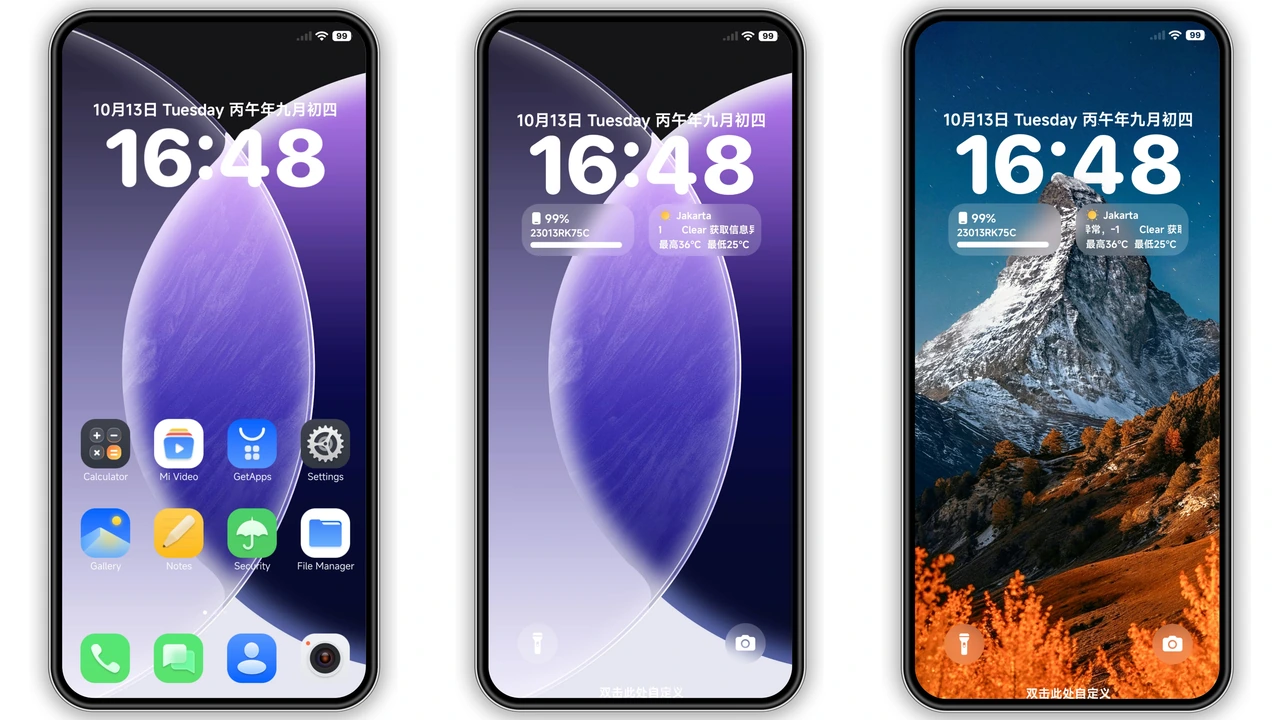
Parameter · Value
Designer · Piyush KPV
Size · N/A
Format · MTZ
Compatibility · HyperOS / MIUI
Sleek Minimalist Aesthetic with Subtle Accents
The Building MTZ pack embraces a clean, minimalist look. Icons use thin outlines, muted tones, and subtle gradients that blend into both light and dark system themes. Rounded corners soften the overall feel, while a few accent colors—electric teal and soft amber—appear on frequently used apps, giving a hint of personality without overwhelming the UI. The design language mirrors modern Android visual trends, ensuring the home screen feels fresh yet familiar.
Suggested Read: USDT HyperOS 3.0 Theme: Trending di Xiaomi, Redmi, dan Poco
Ideal Users: Power Users and Minimalist Fans
Who will love this pack? Users who crave a tidy workspace without sacrificing brand identity. Fans of minimalism appreciate the reduced visual noise, while power users enjoy the consistent iconography that makes quick recognition easier. The pack also appeals to those who switch between HyperOS and MIUI regularly; the icons adapt gracefully to each OS’s system fonts and navigation gestures. If you spend hours tweaking wallpapers, widgets, and launchers, this icon set offers a solid foundation.
Installation Walkthrough: From Download to Home Screen
1. Download the MTZ file from the official theme market inside HyperOS/MIUI. The file appears as Building+ee40147c-1758-420d-a60d-e47b51017bbf+www.mtzfile.pw+MIUI12+ and hOS 1+-ICONS.mtz.
2. Open the file with the built‑in Theme Manager. The system will parse the package and display a preview screen.
3. Tap “Apply”. The manager prompts a reboot; confirm to let the OS reload resources.
4. Verify after reboot. Icons on the home screen and app drawer should reflect the new design. If any app retains the old icon, long‑press the icon, select “Edit,” and choose the new MTZ version from the list.
5. Backup the theme via Theme Manager → Export → Save to internal storage. This step protects you from accidental loss when switching themes later.
Compatibility Checklist and Performance Expectations
• OS Versions: Fully compatible with HyperOS (any build) and MIUI 12 onward. Earlier MIUI versions may show missing icons for newer system apps.
• Device Types: Works on Xiaomi, Redmi, and POCO devices. No known issues on flagship or budget models.
• Performance: The pack is lightweight; users report negligible impact on RAM or battery. Icon rendering stays smooth even with intensive launchers like Nova or Lawnchair.
• Potential Pitfalls: Some third‑party launchers cache icons. Clear the launcher cache in Settings → Apps → [Launcher] → Storage → Clear Cache if icons don’t update immediately.
• Future Updates: The designer occasionally releases color variants. Keep an eye on the Theme Market for “Building MTZ – Dark” or “Building MTZ – Vibrant” editions.
Pros
• Clean, modern aesthetic
• Low resource footprint
• Seamless integration with both HyperOS and MIUI
• Easy to revert via exported backup
Cons
• Limited color palettes (only two accent tones)
• No dedicated widget pack included
• Manual cache clearing may be required on some launchers
Download Links
Use the buttons below to open the theme file and the supporting link.
Download File
Helpful links
More Theme Updates
For more curated HyperOS and MIUI theme updates, visit Hyper OS x MIUI .