Parameter · Value
Designer · Eto
Size · 7.68 MB
Format · MTZ
Compatibility · HyperOS, MIUI (global)
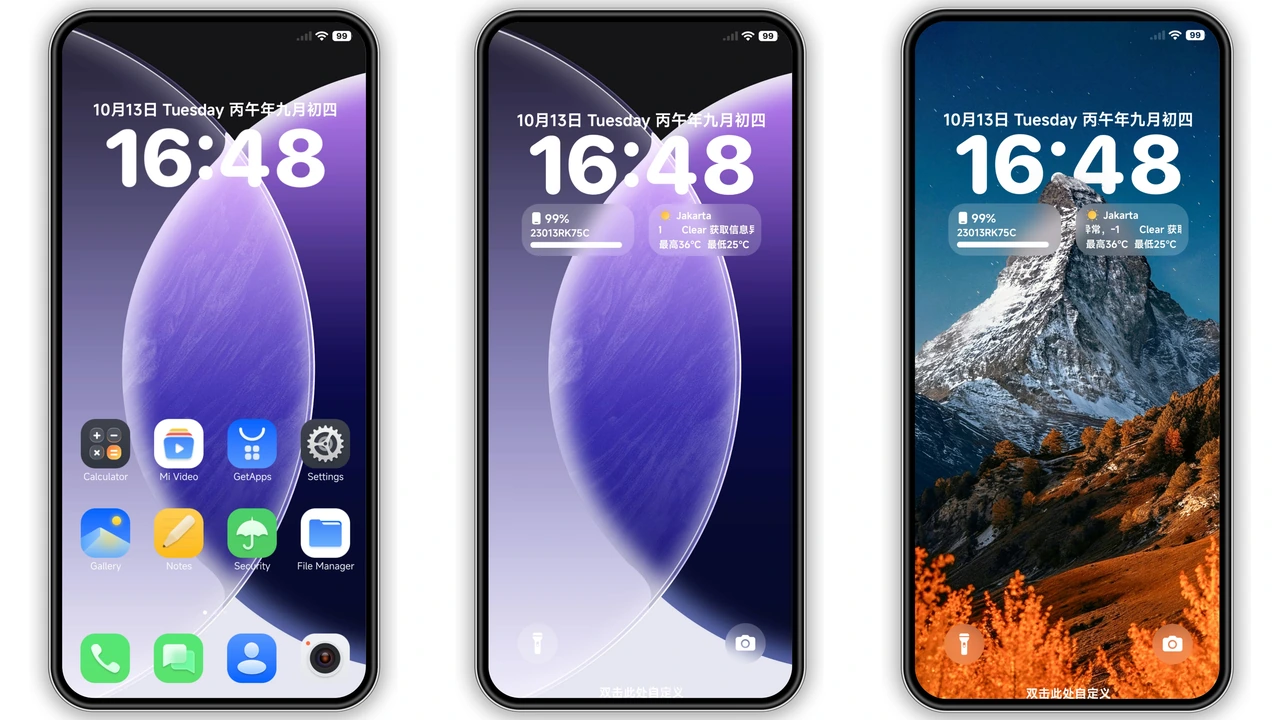
Dark Samsung‑Inspired Icons That Pop
Wanyoui leans heavily on Samsung’s One UI language. Icons are rendered in a deep matte black, with subtle corner rounding that feels familiar yet fresh. The contrast against the dark status bar makes app shortcuts instantly recognizable. Even the system icons—battery, signal, Wi‑Fi—receive the same treatment, creating a cohesive visual language that never feels half‑done.
Suggested Read: Trending Daisy MTZ Theme: Fresh Look for HyperOS & MIUI
Bold Wallpapers & Ambient Lock Screen
The theme bundles three high‑resolution wallpapers that echo a minimalist cyber‑aesthetic. Each image uses a limited palette of charcoal, slate, and occasional electric teal accents. The lock screen inherits the same color scheme, adding a faint glow to the clock and notification widgets. This ambient effect is subtle enough not to drain battery, yet it gives the device a premium feel every time you glance at it.
Who’ll Love This Minimalist Black Aesthetic
If you gravitate toward dark UI palettes, Wanyoui is a natural fit. It appeals to users who appreciate Samsung’s clean iconography but want it on Xiaomi, Redmi, or POCO hardware. Power users who customize status bar widgets will enjoy the consistent black backdrop that lets widgets pop without clashing. Conversely, fans of vibrant, colorful themes may find the monochrome approach too austere.
Installing Wanyoui: Step‑by‑Step Guide
1. Download the MTZ file – locate the 7.68 MB package in the official theme store or the provided download section.
2. Open Theme Store – launch the pre‑installed Themes app on your device.
3. Import – navigate to the bottom of the Themes screen, tap Import, and select the downloaded MTZ.
4. Apply – once imported, hit Apply. The system will prompt a quick restart; confirm to ensure all overlays load correctly.
5. Fine‑tune – after reboot, head to Settings → Display → Always‑On Display to enable the theme’s AOD layout if desired.
The installation process mirrors any standard MTZ theme, so there are no hidden steps. Expect a brief pause while the system caches new icons and wallpapers. If you notice missing elements after the first launch, a second reboot usually resolves the glitch.
Pros and Cons
• Pros
• Consistent black aesthetic across icons, status bar, and lock screen.
• High‑quality wallpapers that complement the dark scheme.
• Lightweight package, negligible impact on storage.
• No root required; works on stock and custom ROMs.
• Cons
• Limited color variety; not suited for users who prefer bright themes.
• Samsung‑style icons may feel out of place on pure MIUI interfaces.
• AOD layout is optional; users must enable manually.
• No built‑in widget pack; relies on existing system widgets.
Theme Preview

Download Links
Use the buttons below to open the theme file and the supporting link.
Wanyoui Theme mtz File
Helpful links
More Theme Updates
For more curated HyperOS and MIUI theme updates, visit Hyper OS x MIUI .