Parameter · Value
Designer · Sugeng Marsudianto
Size · 13.24 MB
Format · MTZ
Compatibility · HyperOS, HyperOS 2.0, HyperOS 3.0, MIUI
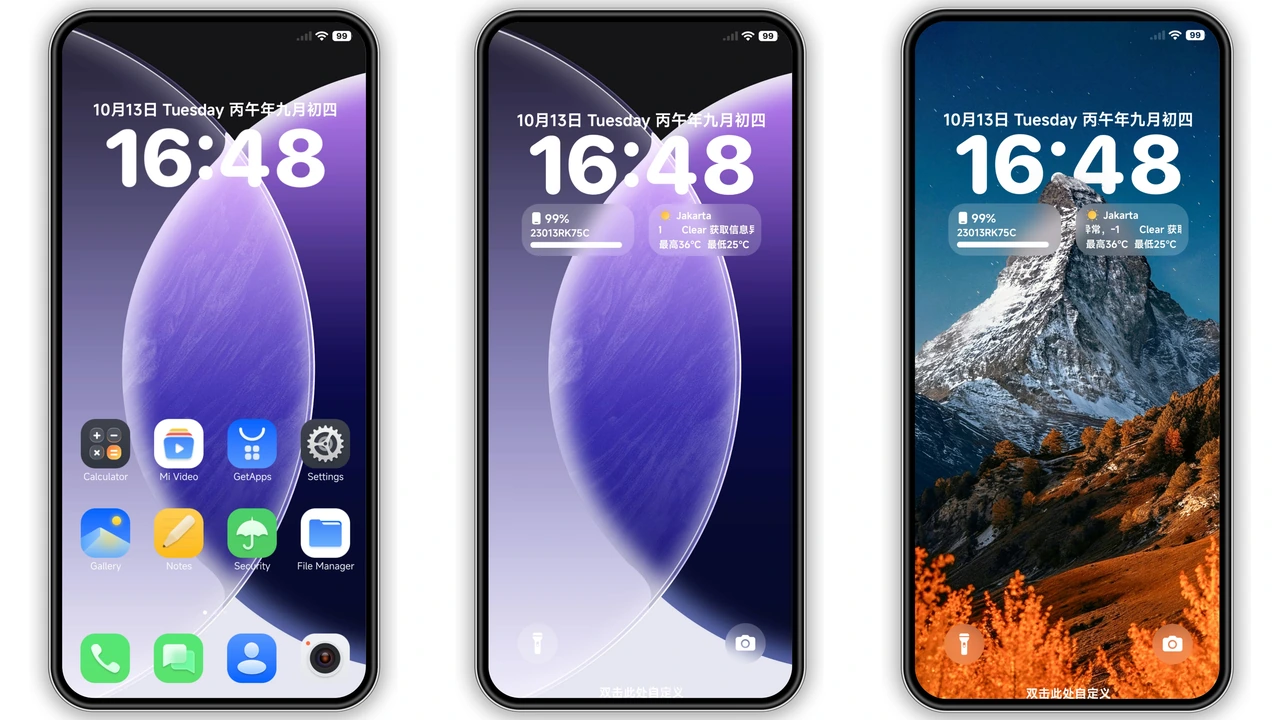
Stark Monochrome Visual Language
Putih Hitam translates to “white black” in Indonesian, and the theme lives up to its name. Every icon, wallpaper, and widget adopts a high‑contrast palette. System bars turn matte black, while app icons receive a clean white outline. The lock screen features a subtle gradient that never distracts from notifications. Even the Always‑on Display respects the binary scheme, showing time in crisp white against a deep‑gray backdrop. The result feels like a modern art piece rather than a conventional Android skin.
Suggested Read: Dark Oriental Aesthetic vs Minimalist Light: Which Theme Wins?
Ideal Users & Use‑Cases
Minimalist lovers gravitate toward this theme. Those who spend hours scrolling appreciate the reduced visual noise; the black‑white scheme highlights content instead of UI chrome. Night‑time readers benefit from the dark background, which eases eye strain. Photographers who showcase their work on the lock screen enjoy the neutral canvas that lets images shine. Developers who prefer a distraction‑free IDE also find the theme helpful, as the stark colors keep focus on code rather than decorative elements.
Compatibility & Device Reach
The theme declares compatibility with HyperOS, HyperOS 2.0, HyperOS 3.0, and MIUI. In practice it works on most Xiaomi, Redmi, and POCO models that ship the official HyperOS or MIUI builds. Devices running custom ROMs based on these platforms also accept the MTZ file, provided the Theme Store app is present. Older devices lacking HyperOS support may reject the package or display missing assets. Always verify that the system version reports “HyperOS” in Settings → About Phone before proceeding.
Installation Walkthrough & Practical Tips
1. Download the MTZ file from the provided link. The file size is modest, so a standard Wi‑Fi connection suffices.
2. Open the Theme Store app. If the app is not pre‑installed, pull it from the Xiaomi Store.
3. Tap the three‑dot menu in the upper‑right corner, choose Import, then navigate to the downloaded MTZ.
4. Select Apply. The system will prompt a brief UI refresh; accept it.
5. Reboot the device. A restart clears residual caches and ensures the new status bar and lock‑screen assets render correctly.
Common Pitfalls
• Import fails on Chrome or the default Xiaomi browser. Switch to Firefox or the built‑in browser, then repeat the import step.
• Some third‑party launchers override the icon pack. Disable the launcher’s custom icon feature or switch to the native launcher for a true Putih Hitam experience.
• After applying, occasional ghost icons may linger in the recent‑apps view. A second reboot typically resolves the artifact.
Pros and Cons
Pros
• Cohesive black‑white aesthetic that reduces visual clutter.
• Lightweight package; 13 MB download fits any data plan.
• Works on both stock HyperOS/MIUI and compatible custom ROMs.
• Fresh wallpapers and lock‑screen design included.
Cons
• Limited color variety; not suitable for users who enjoy vibrant palettes.
• Some third‑party launchers may not fully respect the icon set.
• Requires Theme Store app; devices without it need an extra install step.
Overall, Putih Hitam delivers a bold, minimalist makeover that feels purposeful rather than gimmicky. Users who value clarity over flash will find the theme a daily confidence boost, while those craving color may look elsewhere.
Theme Preview


Download Links
Use the buttons below to open the theme file and the supporting link.
Putih Hitam Theme mtz File
Helpful links
More Theme Updates
For more curated HyperOS and MIUI theme updates, visit Hyper OS x MIUI .