
Parameter · Value
Designer · San Kagenou
Size · 24.14 MB
Format · MTZ
Compatibility · HyperOS / MIUI
Midnight Tea Palette: Visual Details
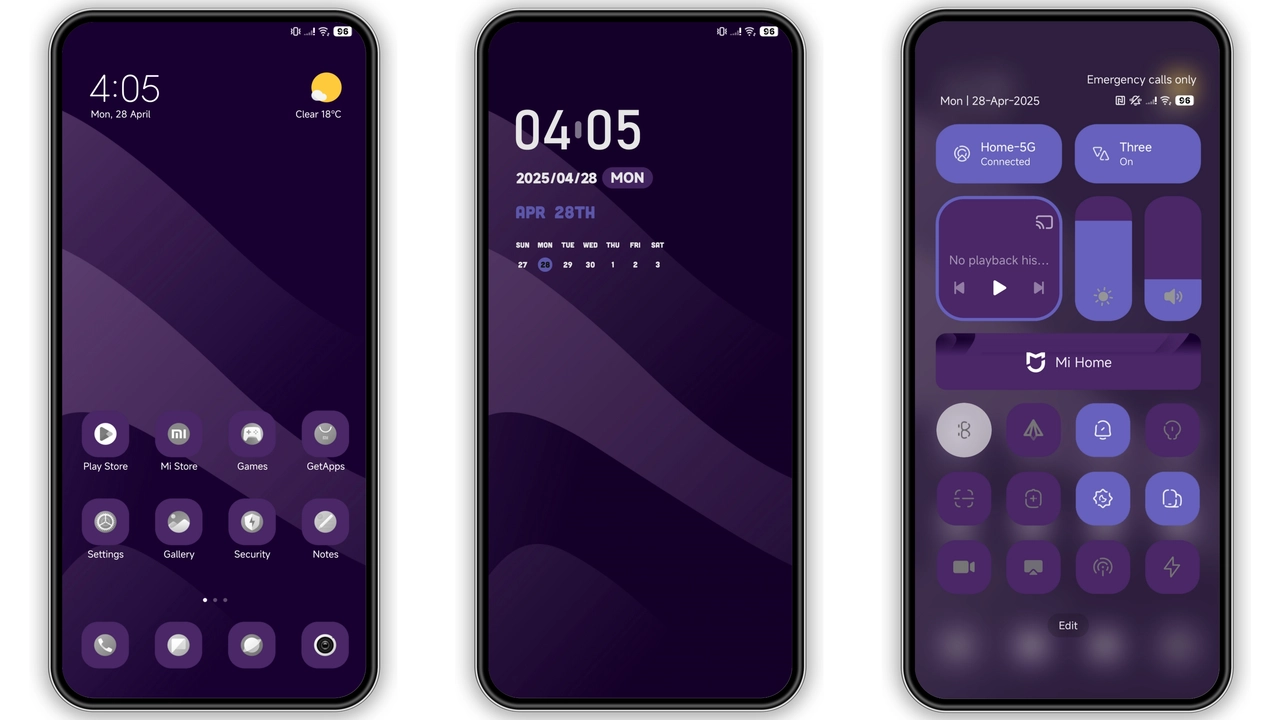
Ichi Ocha embraces a deep‑gray canvas punctuated by muted teal accents. Icons shed glossy gloss, opting for flat, line‑based silhouettes that sit comfortably against the dark backdrop. Wallpapers feature subtle gradients reminiscent of a late‑night tea ceremony, with faint brush‑stroke textures that never overwhelm. The status bar adopts a thin, translucent bar that blends into the lock screen, while the lock screen itself showcases a centered clock in a light‑weight sans‑serif typeface. Always‑on Display (AoD) follows the same aesthetic: minimal numbers, no extra widgets, just enough contrast to read in low light. The theme’s “simple, dark, lifestyle” tagline isn’t empty marketing—it truly strips away visual clutter while preserving essential information.
Suggested Read: VibrantV HyperOS Theme Review: Bold Dark‑Red Look for Xiaomi & Redmi
Who’s Drinking This Dark Brew?
The theme targets users who prefer a distraction‑free environment. If you spend most of the day scrolling feeds, replying to messages, or gaming, the low‑light palette reduces eye strain. It also appeals to fans of Japanese minimalism; the name “ichi ocha” (one tea) hints at a singular, focused experience. Developers who like clean icons for quick navigation will appreciate the consistent line weight across system apps. On the other hand, users who love vibrant colors, animated wallpapers, or heavy widget ecosystems may find the theme too restrained. It shines on Xiaomi, Redmi, and POCO devices that run the latest HyperOS or MIUI builds, especially on models with AMOLED displays where deep blacks translate to true power savings.
Installation Flow on HyperOS & MIUI
1. Locate the MTZ file – the theme is packaged as an MTZ file, the native format for Xiaomi’s Theme Store.
2. Open Theme Store app – launch the pre‑installed Theme Store (or Themes Store) on your device.
3. Import – navigate to the bottom of the app, tap Import, then browse to the downloaded MTZ file.
4. Apply – after import, preview the theme, then hit Apply.
5. Restart – a quick reboot ensures the new status bar, lock screen, and AoD elements load without overlap.
For custom ROM users (MIUI 11‑14 or HyperOS‑based builds), the steps are identical: the Theme Store still recognizes MTZ files, so no extra tools are required. If the built‑in import fails, switch to a different browser (Chrome or the default Xiaomi browser) before re‑downloading the file; some browsers truncate the file name, causing import errors.
Pros and Cons
Pros
• Consistent dark aesthetic across system UI.
• Low‑impact on battery for AMOLED devices.
• Clean, flat icons improve readability.
• Easy import via native Theme Store.
• Works on HyperOS, MIUI, and compatible custom ROMs.
Cons
• No animated wallpapers or widgets.
• Limited color variation; not for users craving vibrancy.
• Requires manual restart for flawless rendering.
• Slightly larger file size for a pure UI theme.
• Potential import hiccups on certain browsers.
Theme Preview

Download Links
Use the buttons below to open the theme file and the supporting link.
ichi ocha Theme mtz File
Helpful links
More Theme Updates
For more curated HyperOS and MIUI theme updates, visit Hyper OS x MIUI .


